
Skywalker V1 HiBean Firmware Installation

RequirementsPre-Requisites
This is still in Beta and code is still being worked on. Please report any issues you have to our Community Discord.
- A supported
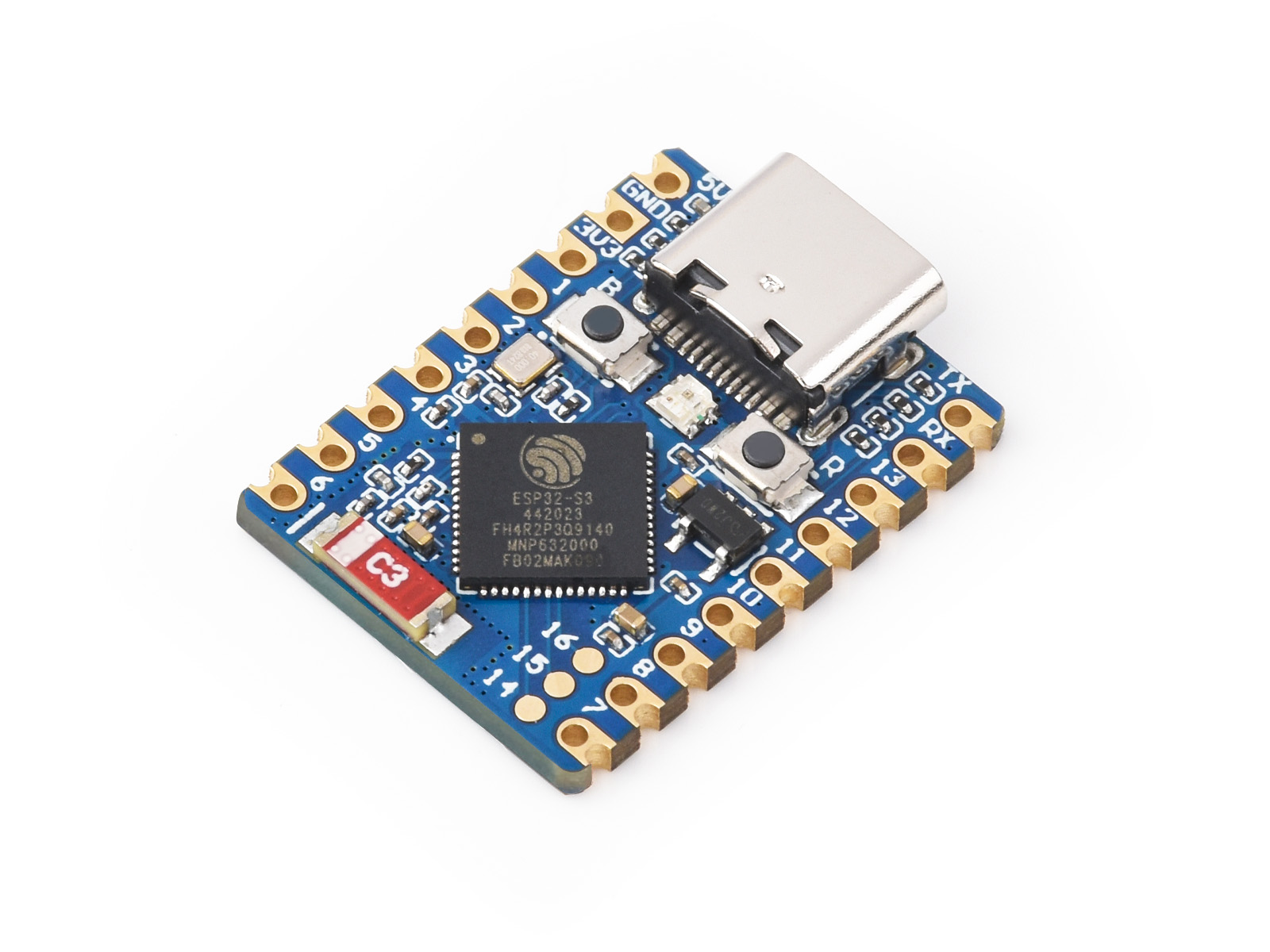
ESP32-S3ESP32:device: Ensure you have a supported ESP32 device, such as the Waveshare ESP32-S3boardand a USB cable. The S3 is a compact, low-cost device which can plug directly into the v1 Skywalker using a USB-C <-> USB-A adapter or suitable A to C cable.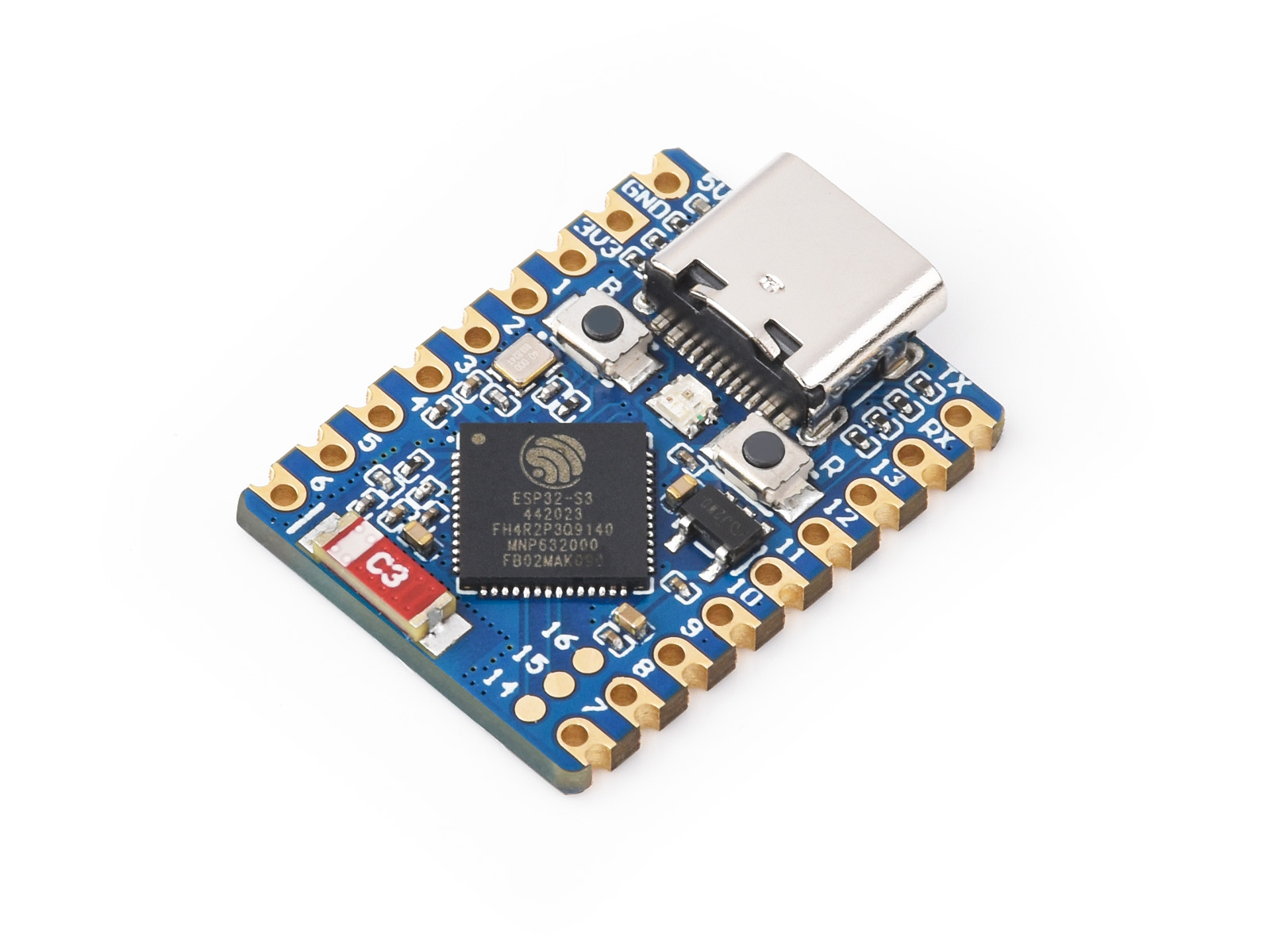
- A suitable "Community" Binary File
Link:to
flash onto the esp32 device:V1.2.2LatestByCommunityMagnmCI aka FlornholioBinaries. - A Browser
:for flashing the binary: Use Google Chrome or Microsoft Edge (supports Web Serial) ESPHome. - USB Cable: A reliable cable for data transfer.
Steps
1. Download the appropriate Binary File
OpenThere a are a few community binary authors, but generally you should use theGitHublatestlink:release from any of:V1.1.7Latest Community Binaries.ClickBearonBin

2. Open ESPHome Web
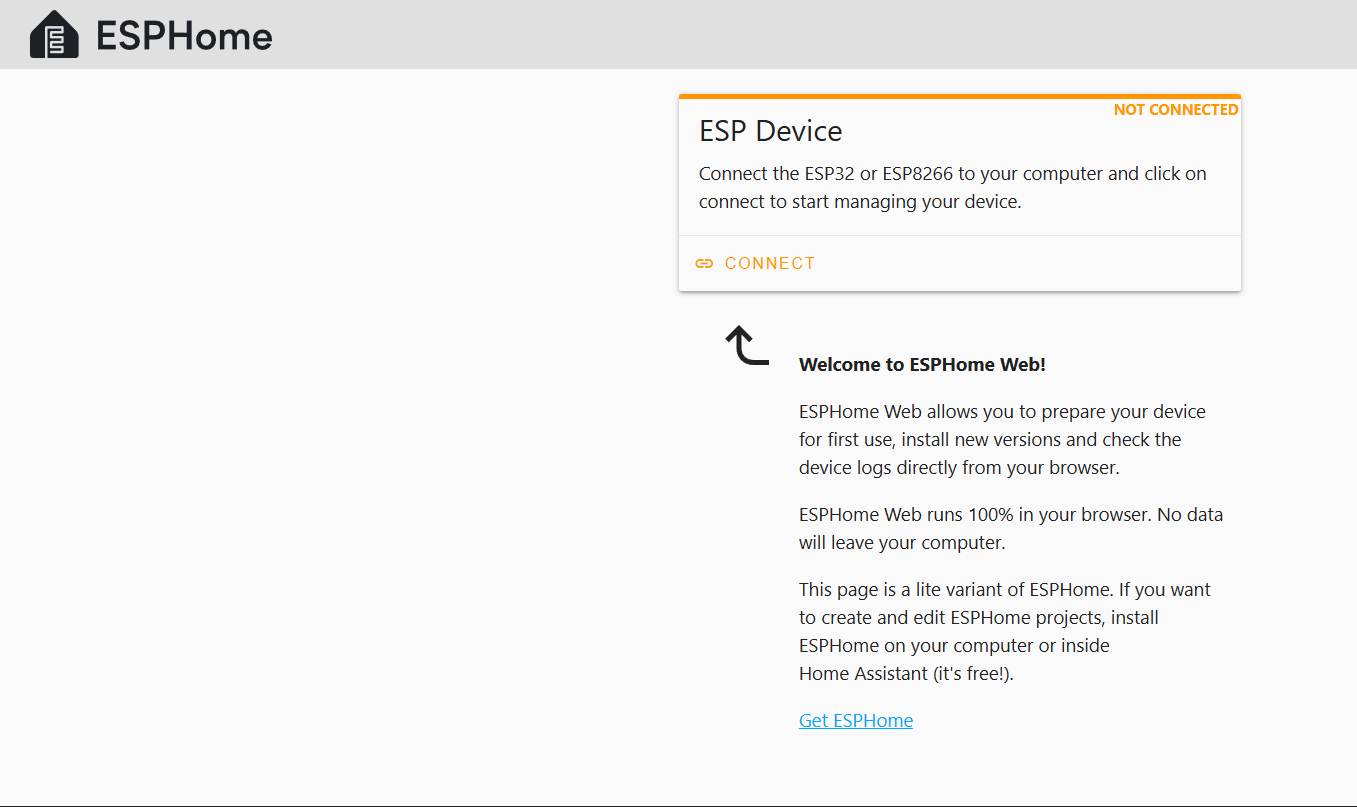
- Go to ESPHome Web in your Chrome or Edge browser.
MakeConnectsuretheyour ESP32-S3 is connectedESP32 to your computer using a USBcable.cable or adapter.
3. Connect to the ESP32-S3
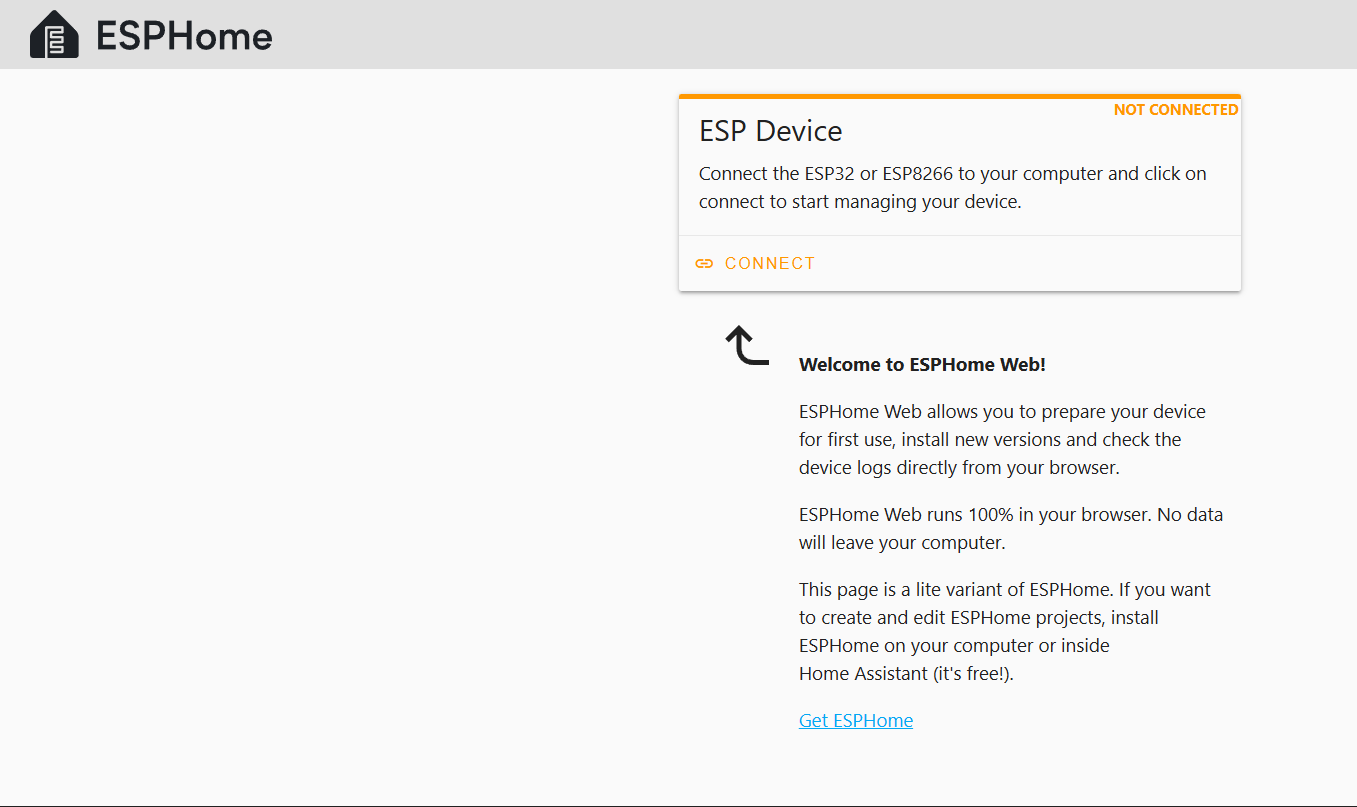
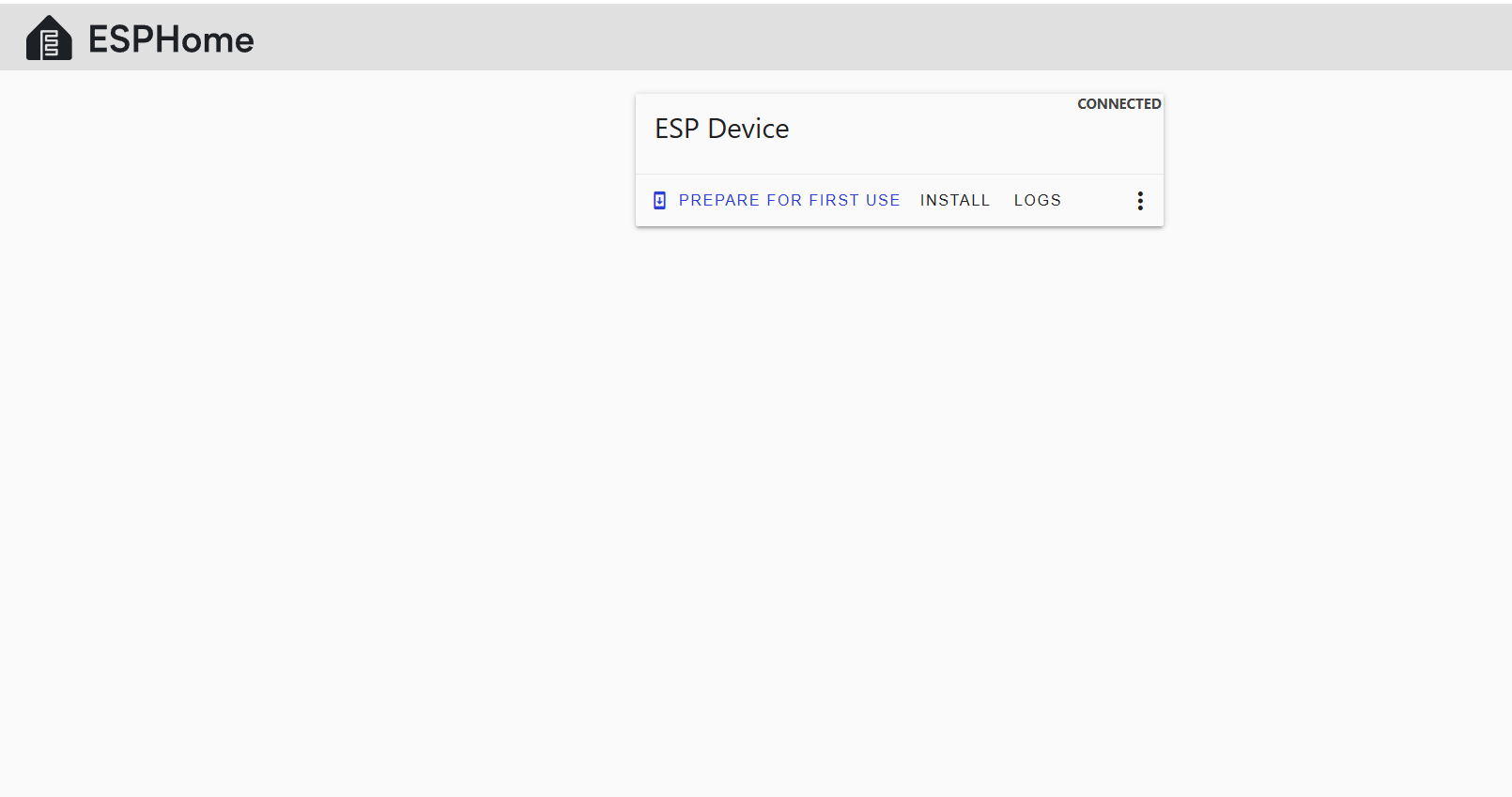
- On the ESPHome Web page, click the Connect button.
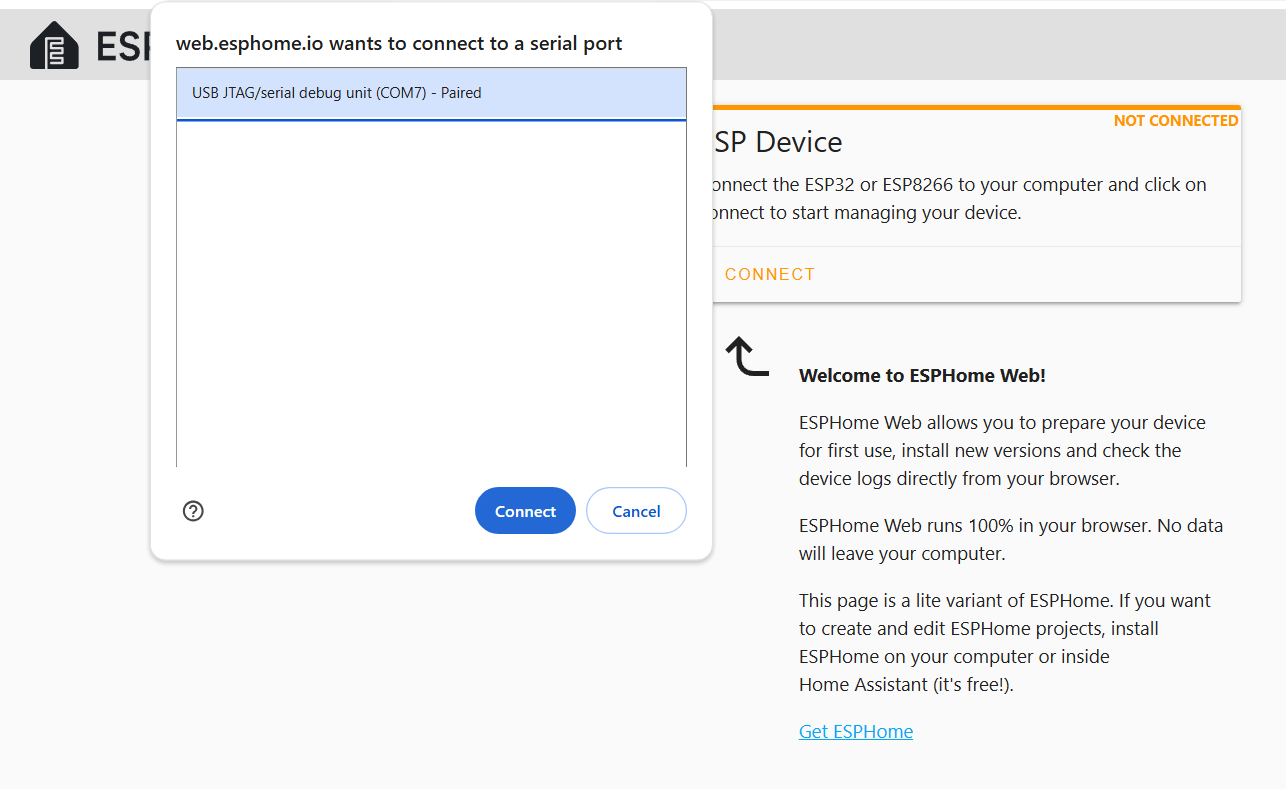
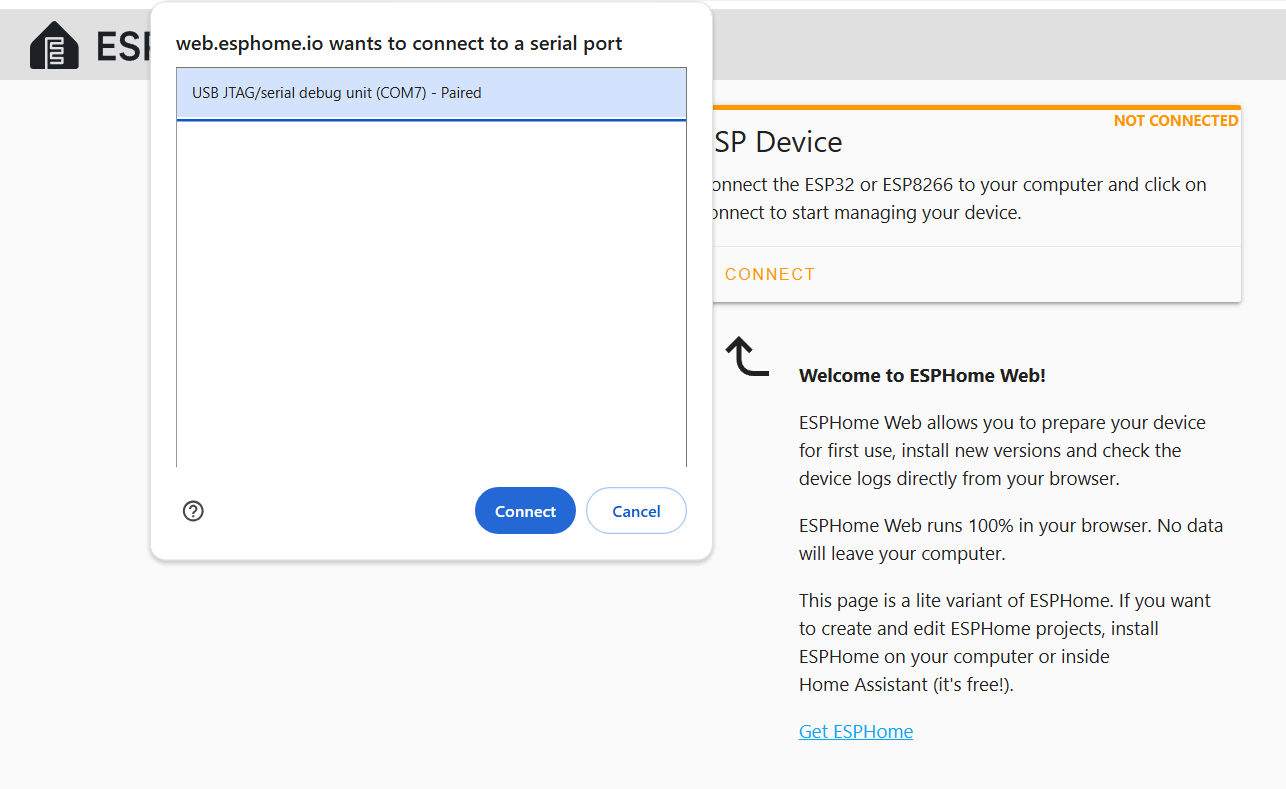
- A pop-up will appear with available devices. Select the port for your ESP32-S3 and click Connect. This will generally show as a "USB JTAG/serial debug unit" on a COM port on Windows, or on /cu/usbmodem port on MacOS. If your device does not appear here, or appears and disappears repeatedly, see Troubleshooting below.
4. Install the Binary File
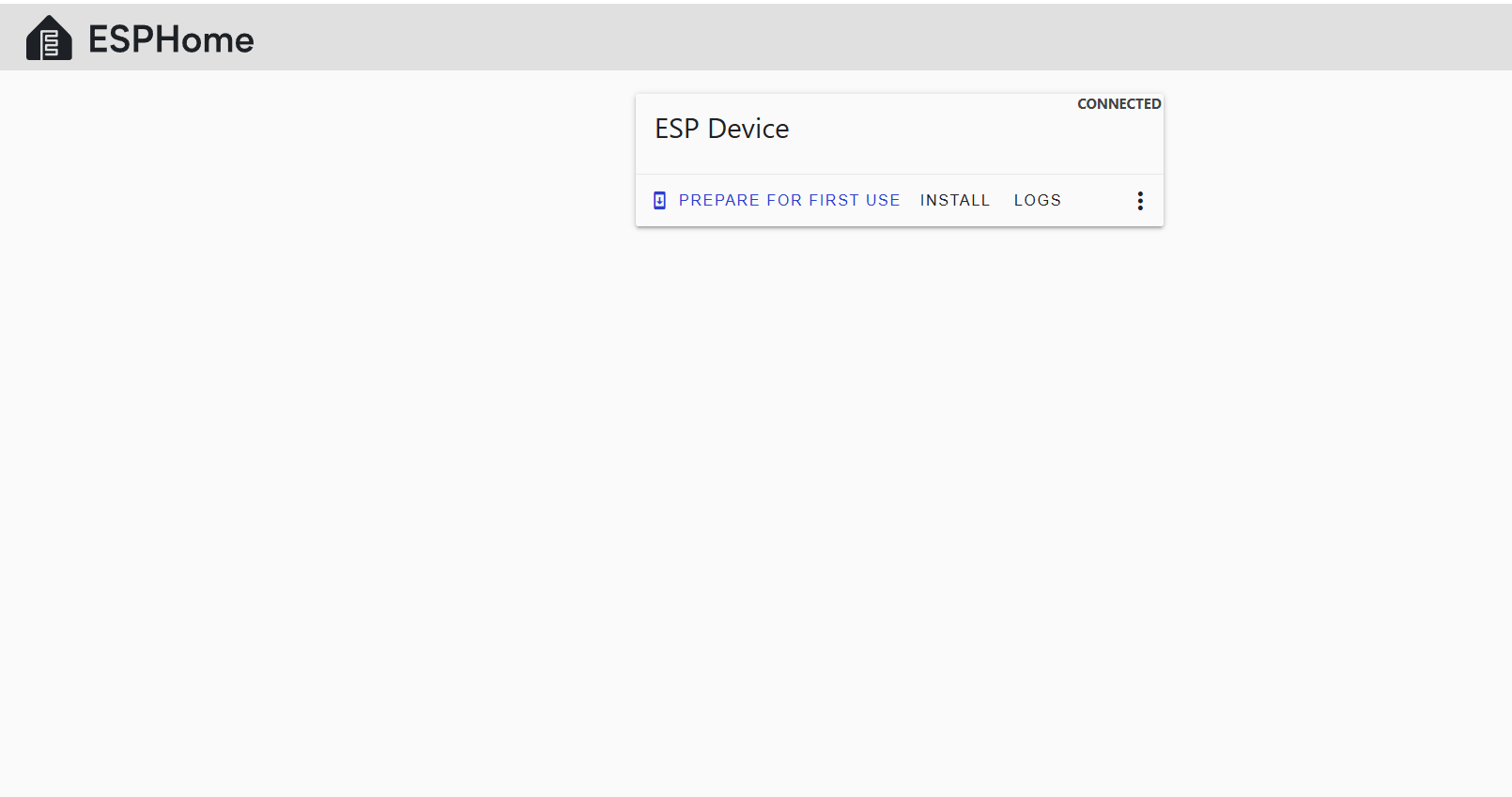
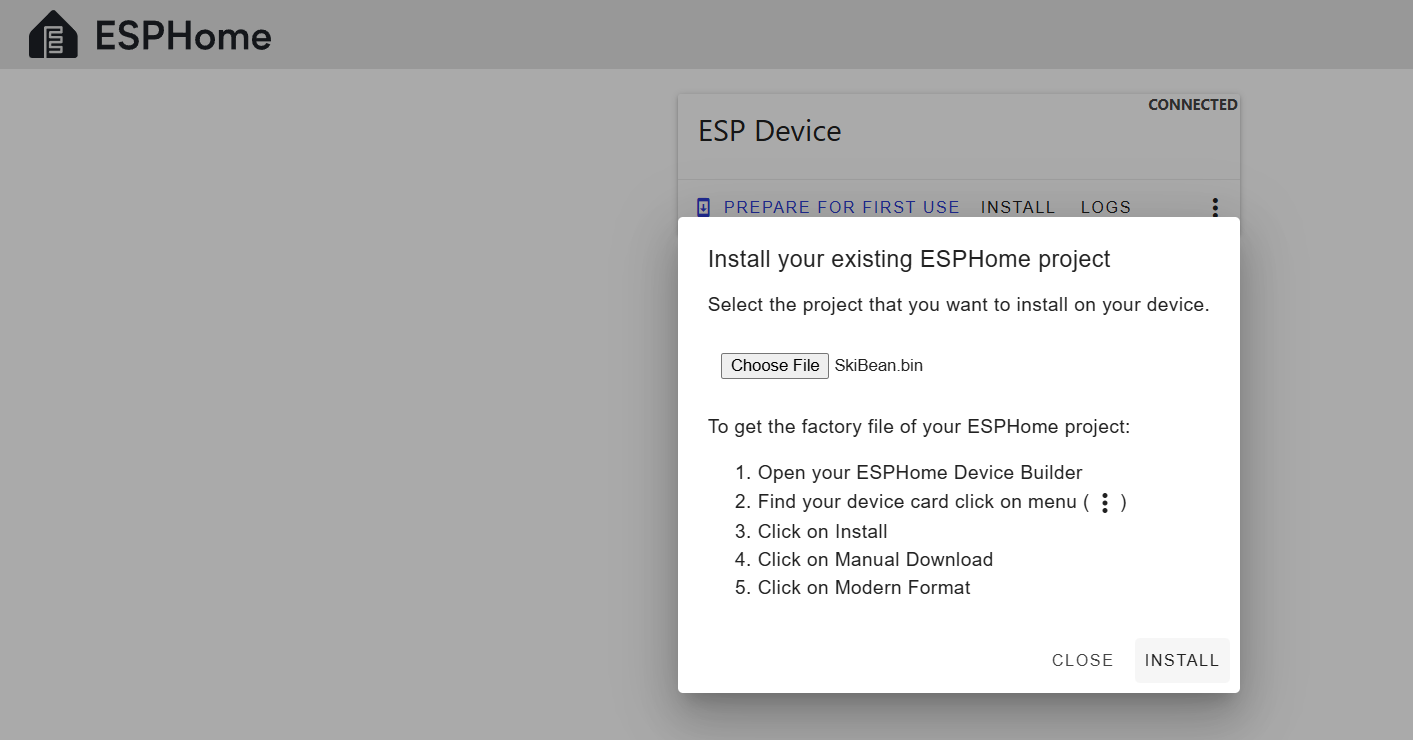
- Once connected, click Install.
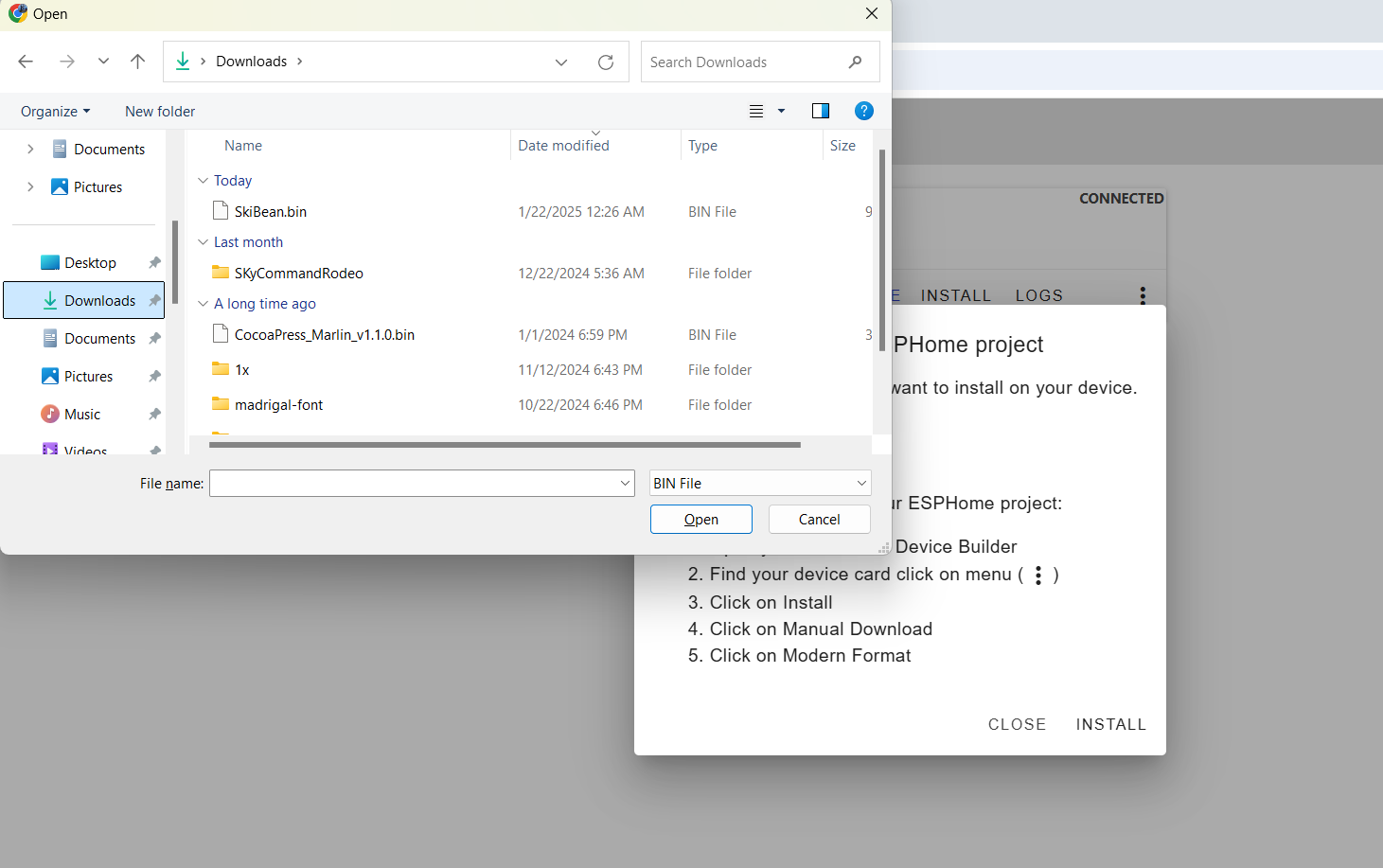
- Choose File when prompted
- In the file selection dialog, locate and select the
SkiBean.firmware .bin
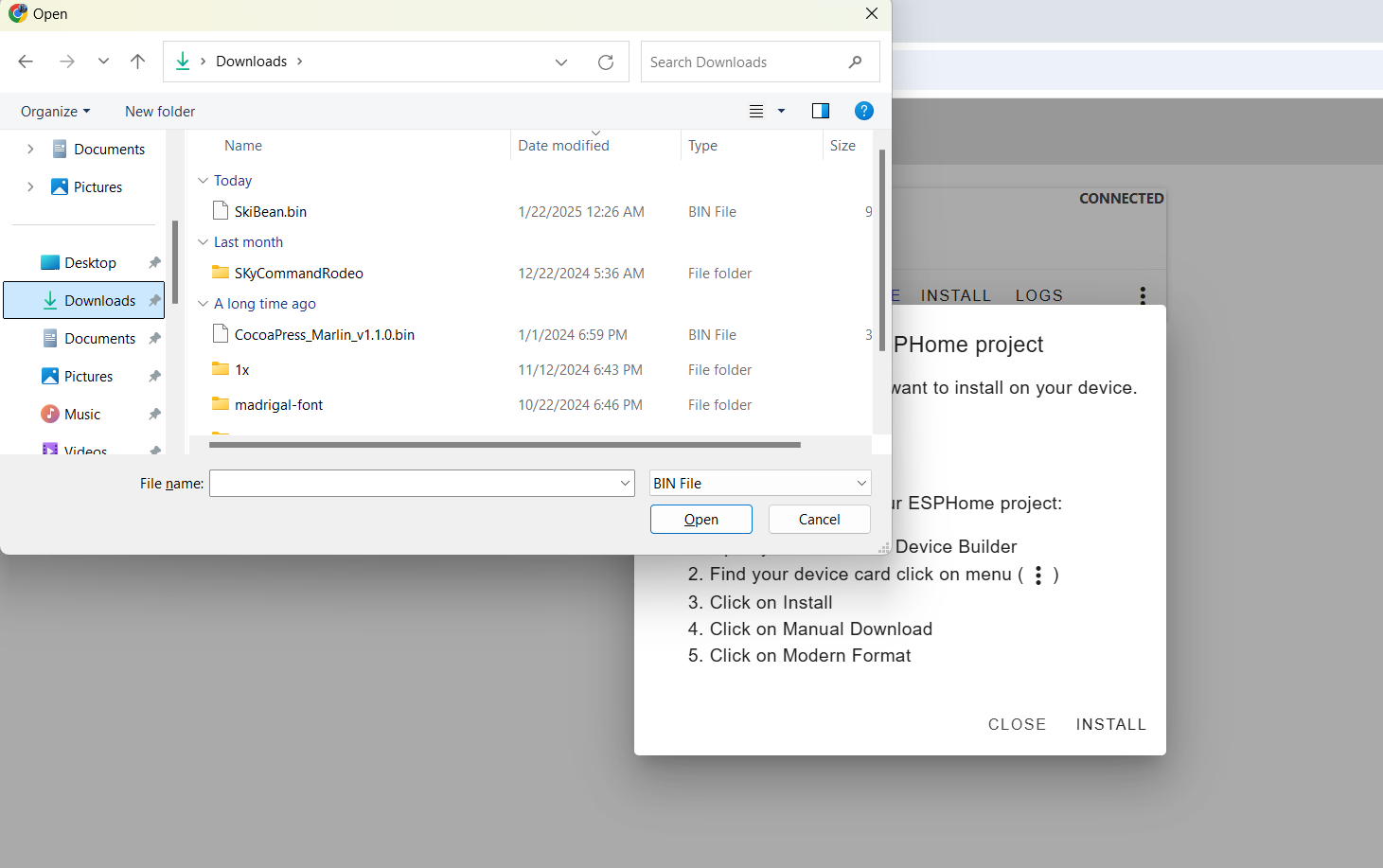
- Click Install to start the flashing process.
-

5. Flash the Firmware
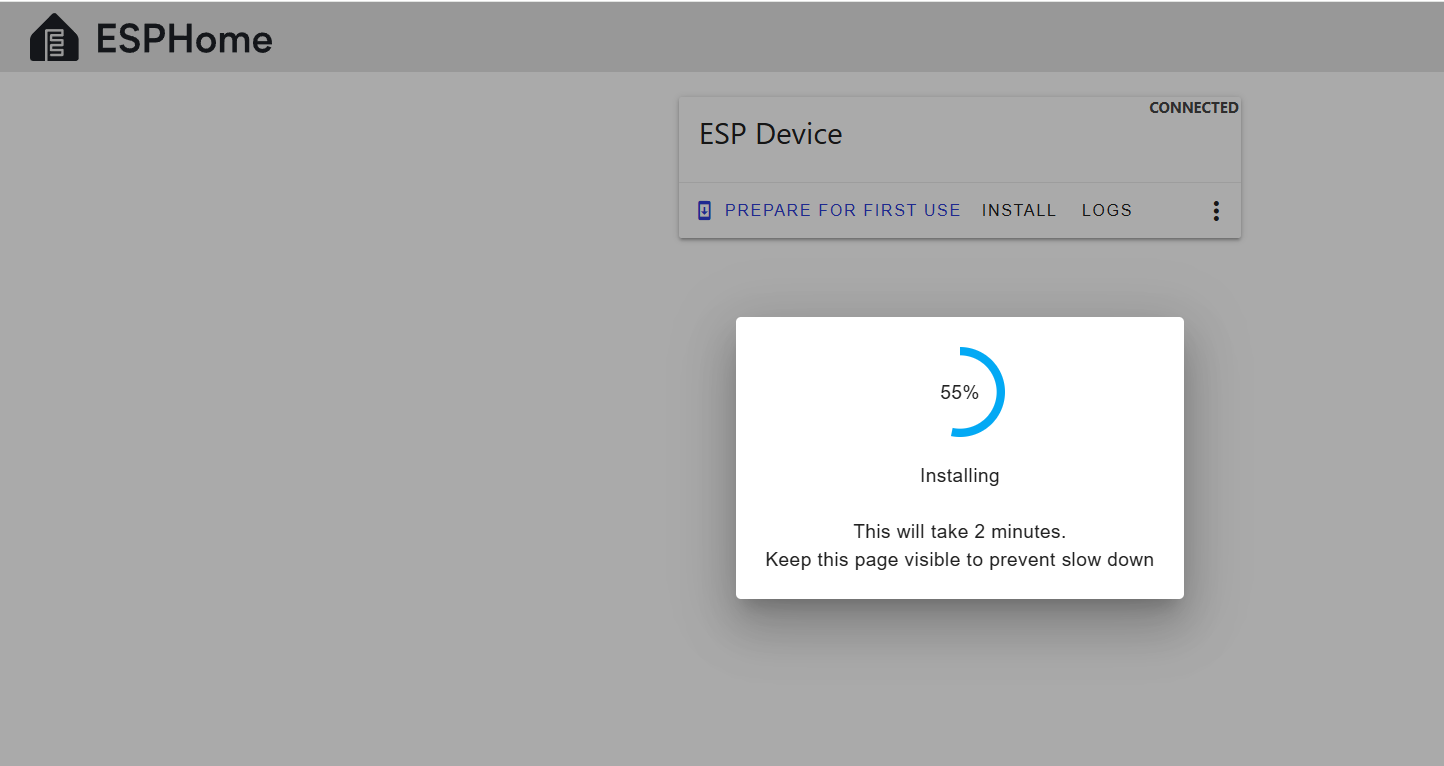
- ESPHome Web will erase the existing firmware and flash the
SkiBean.binbinary.
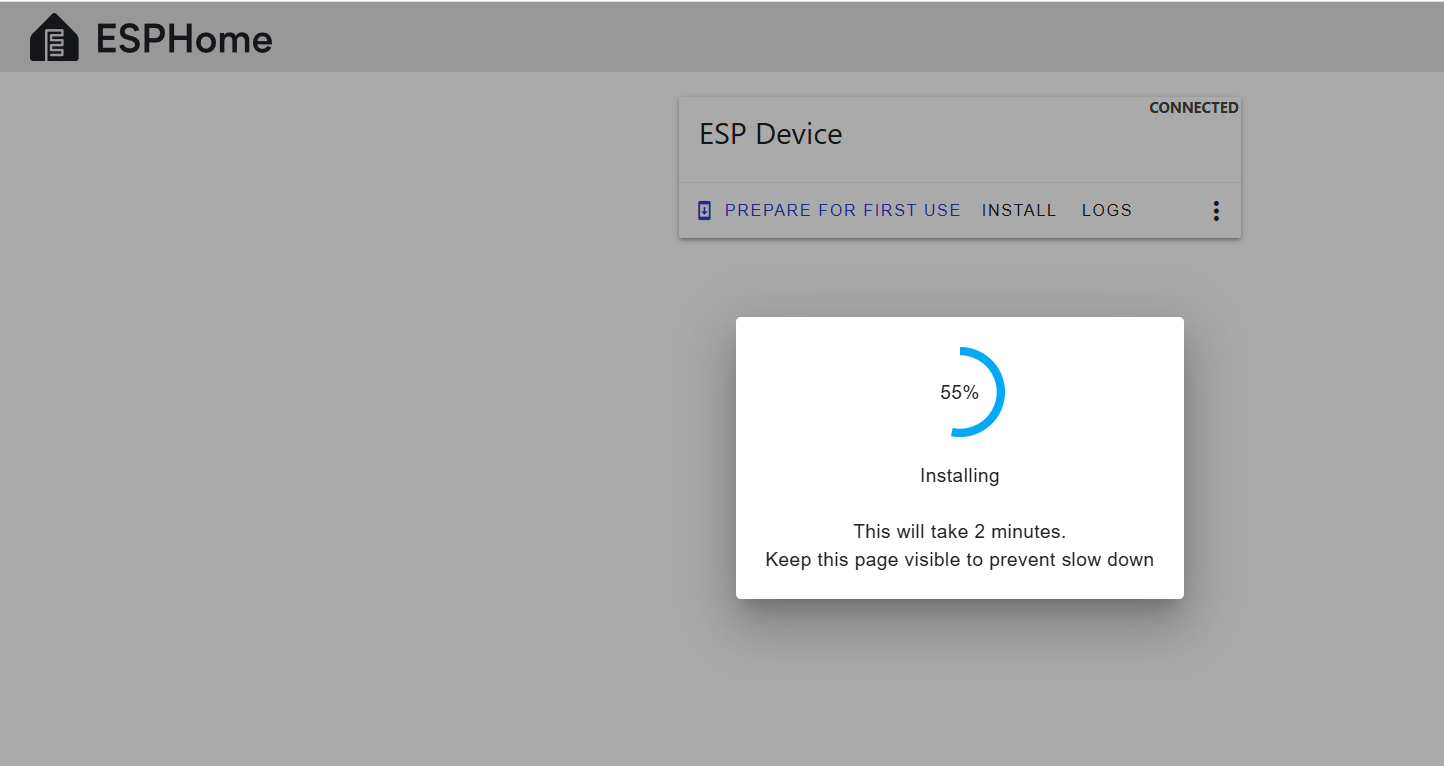
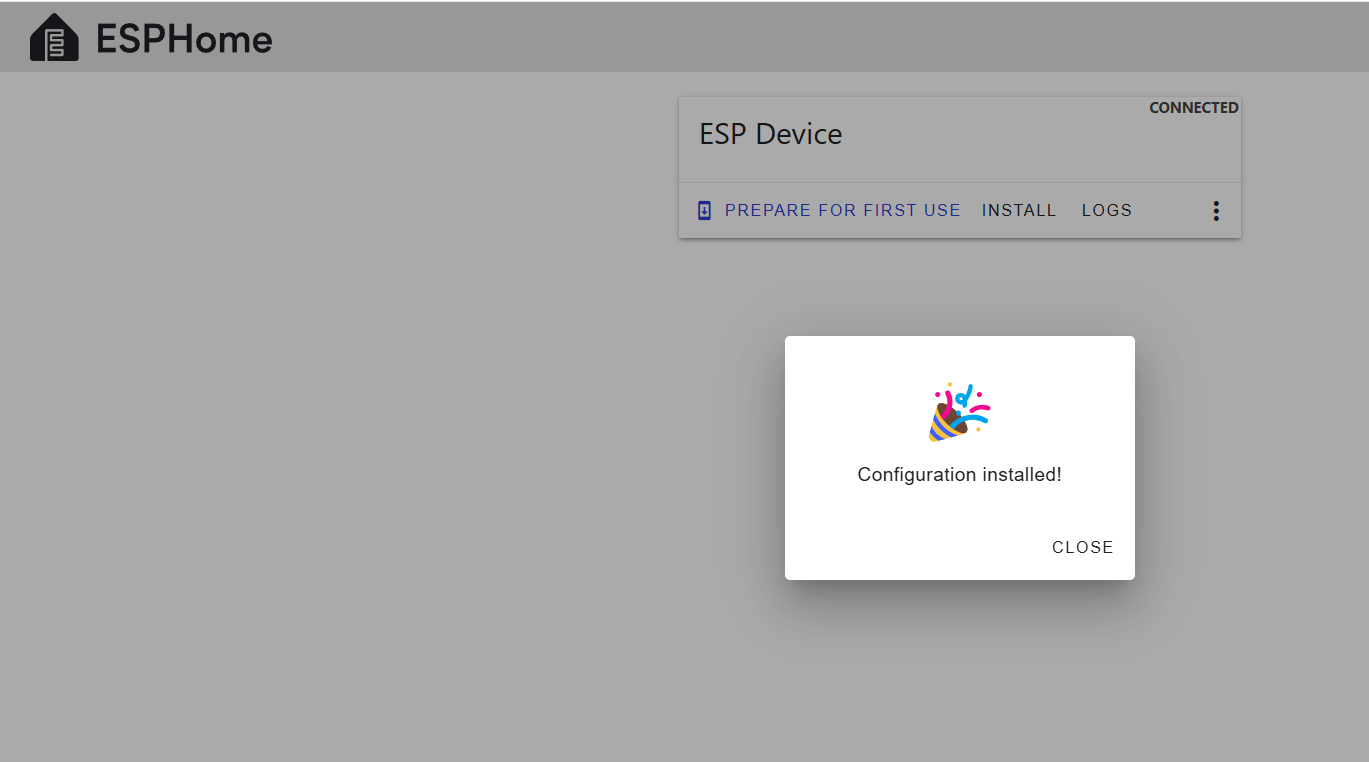
- The flashing process may take a few minutes. Wait for it to complete.
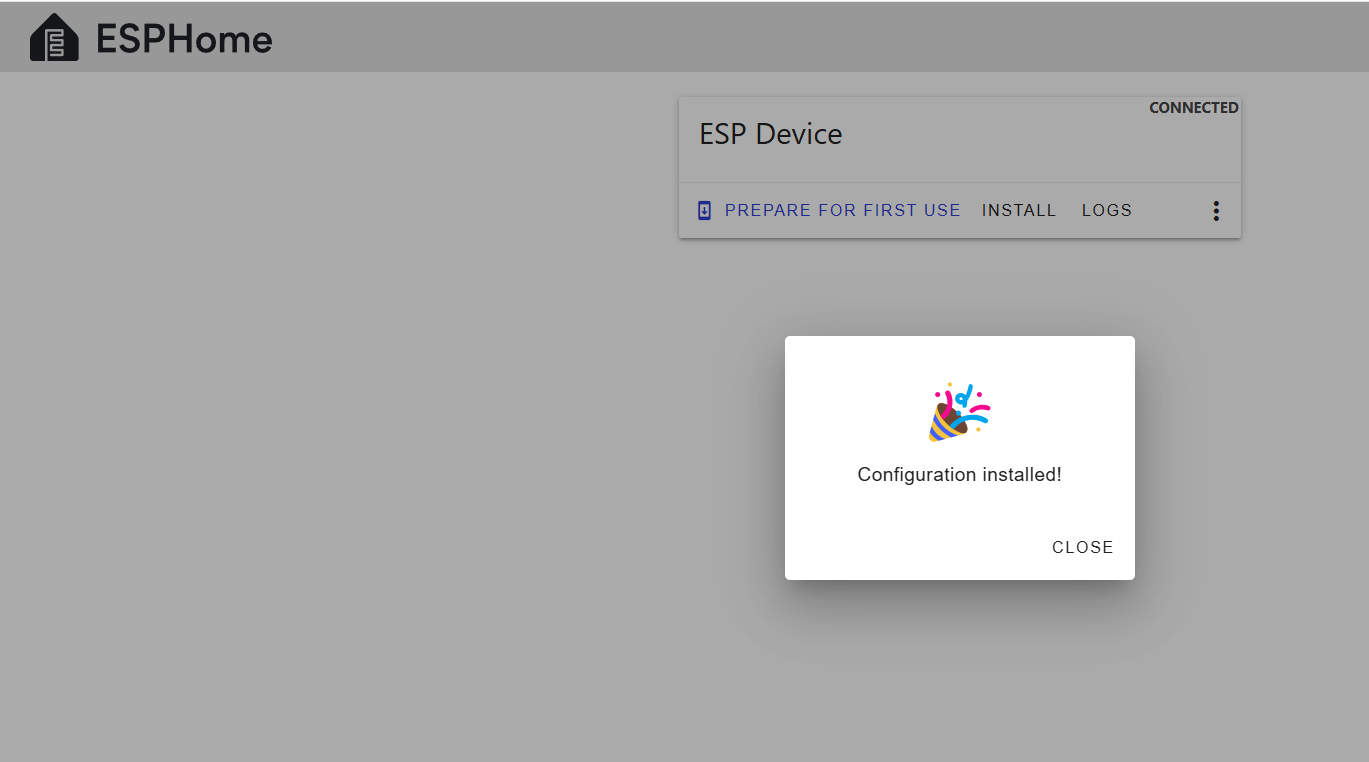
- After successful installation, a success message will appear.
- ESPHome Web will erase the existing firmware and flash the
6. Visual Test
If all goes well, you should see an LED on the ESP32 begin to flash alternately red/blue. If so, that means your esp32 flashed successfully.
7.
DirectConnect Linkfrom HiBean
Troubleshooting
- Device Not Recognized: Ensure your USB cable supports data transfer.
- Flashing Errors
-
Hold BOOT and press RESET (recommended method):
- Hold down the BOOT button.
- While holding BOOT, press and release the RESET button.
- Continue holding BOOT for a second, then release it.
-
-
-
Unplug and replug while holding the BOOT button:
- Disconnect the ESP32-S3 from power (USB).
- Press and hold the BOOT button.
- While holding BOOT, plug the USB back in.
- Once connected, release the BOOT button.
-
- Let me know if you encounter issues or need further help!