
Kaleido HiBean BLE Firmware
SnowBear Firmware Installation
Kaleido currently uses Classic Bluetooth to talk to HiBean a dated standard that, importantly, isn't supported on iOS at all. This project is a workaround that finally brings Kaleido connectivity to iPhones and iPads. It also pairs nicely with Bear's bridge for connecting devices over BLE Serial, which sidesteps the long-standing issues Classic Bluetooth SPP has on macOS, especially on Apple Silicon. Brought to you by Bear of the Skywalker community, with support from Will_Z at HiBean.

Requirements
This is still in Beta and code is still being worked on. Please report any issues you have to our Community Discord.
-
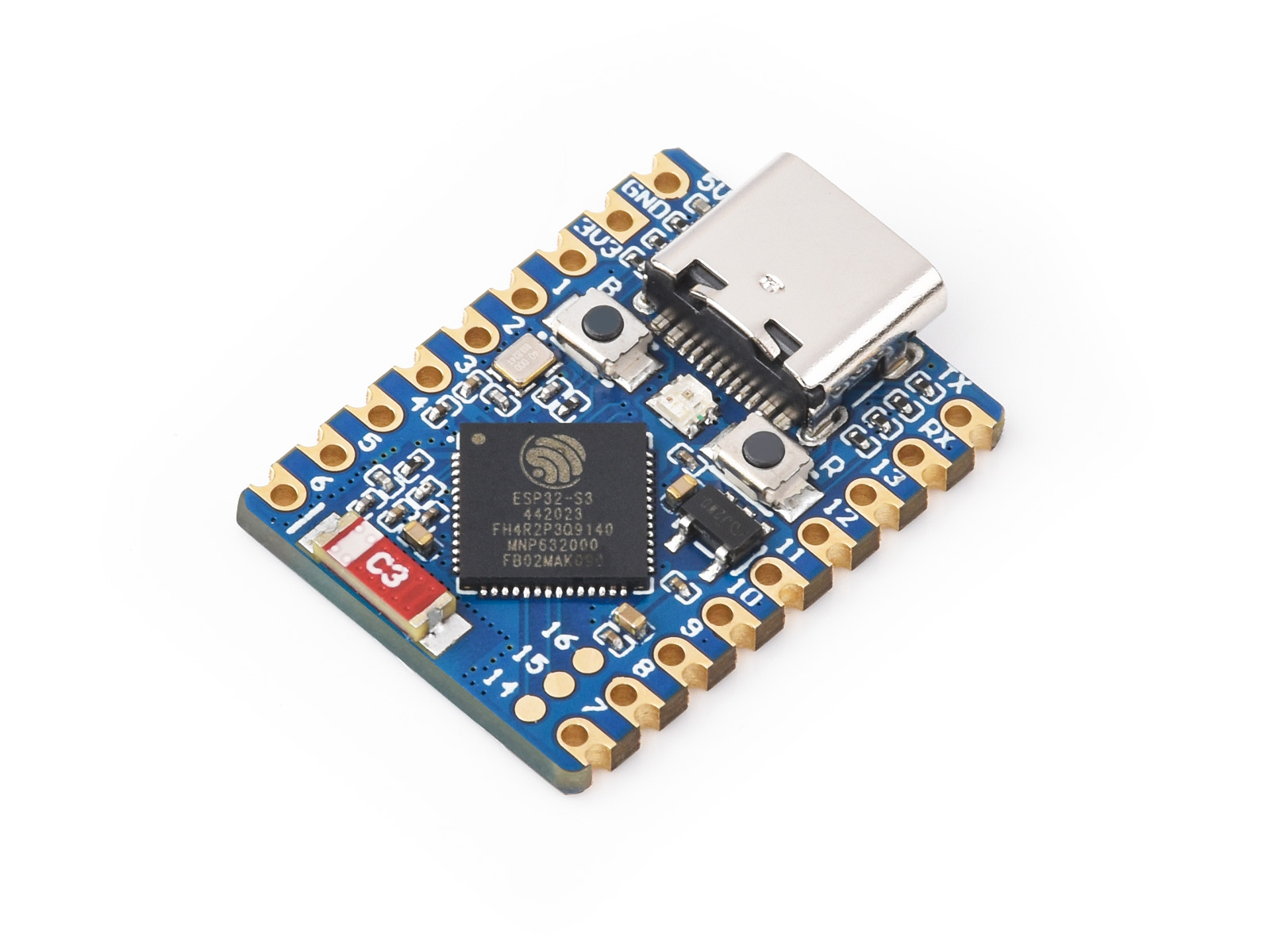
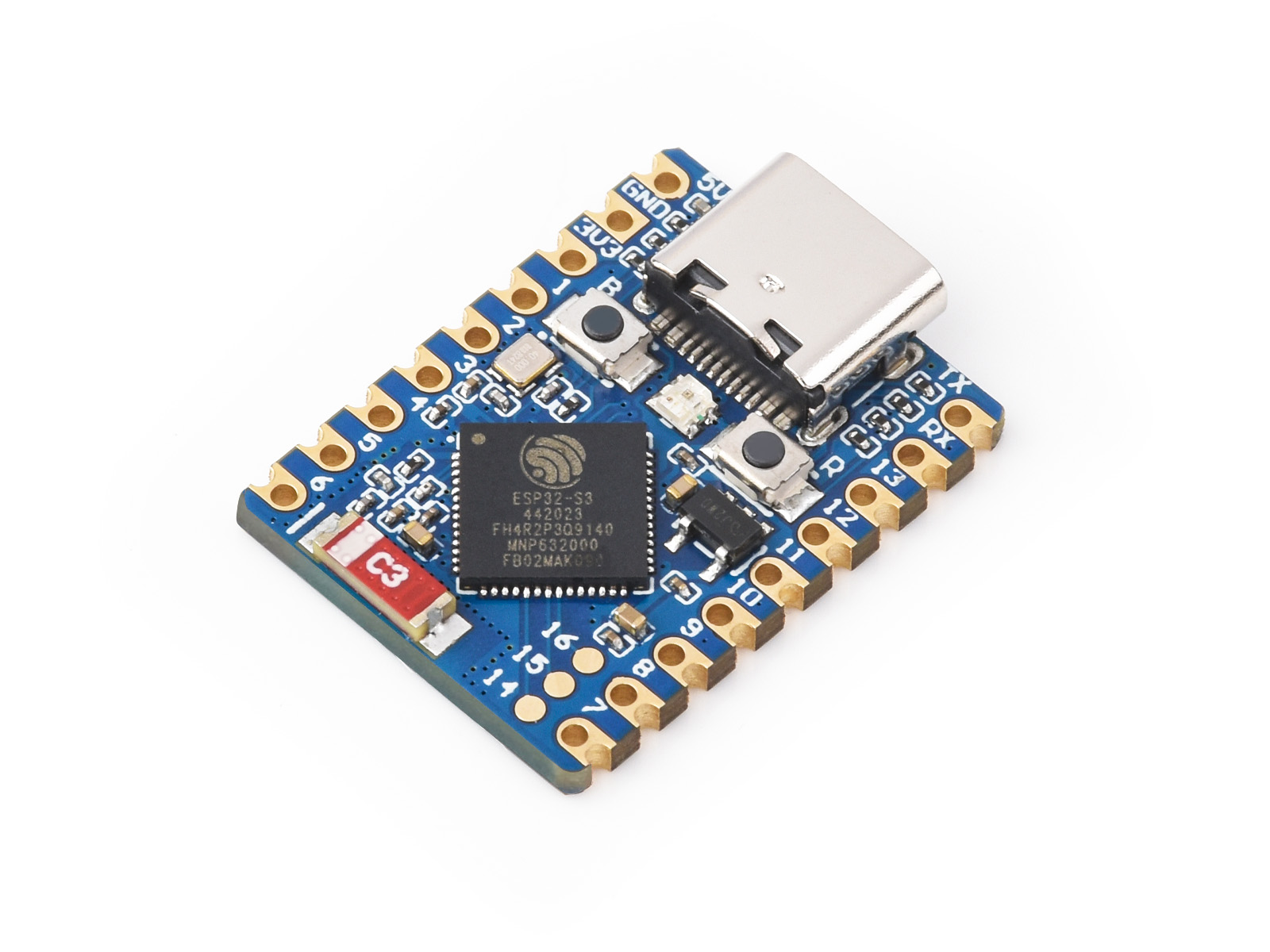
Ensure you have the ESP32-S3 board and a USB cable.
-

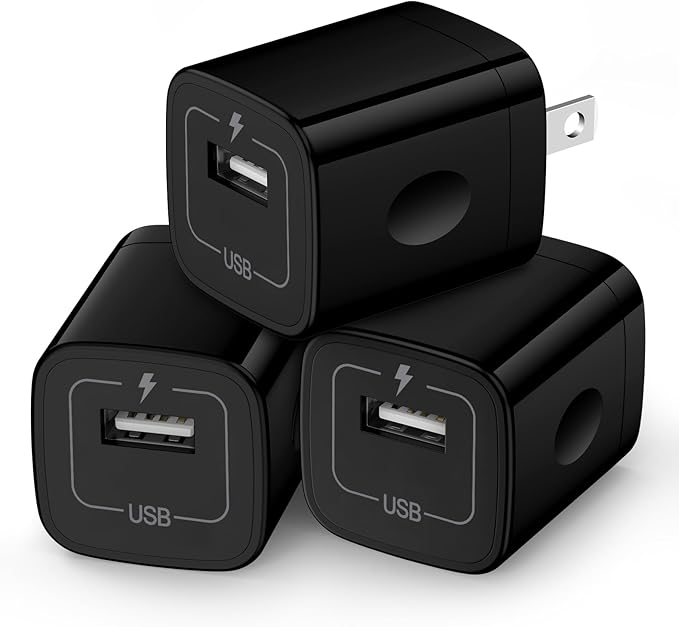
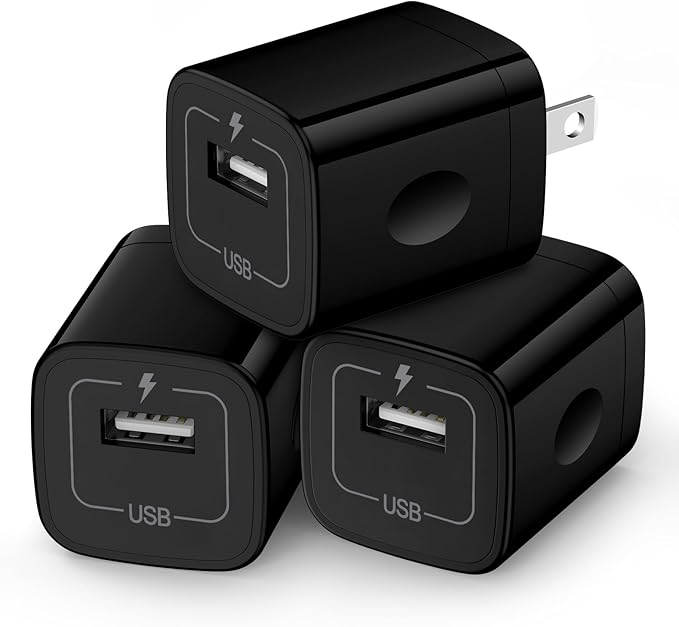
- 5v USB Power Source
- Binary File Link:
SnowBear - Browser: Use Google Chrome or Microsoft Edge (supports Web Serial)
Steps
1. Download the Binary File
- Open the GitHub link: TBA
- Click on the download raw file icon to download

2. Open ESPHome Web
- Go to
in your Chrome or Edge browser.
- Make sure your ESP32-S3 is connected to your computer using a USB cable.
3. Connect the ESP32-S3
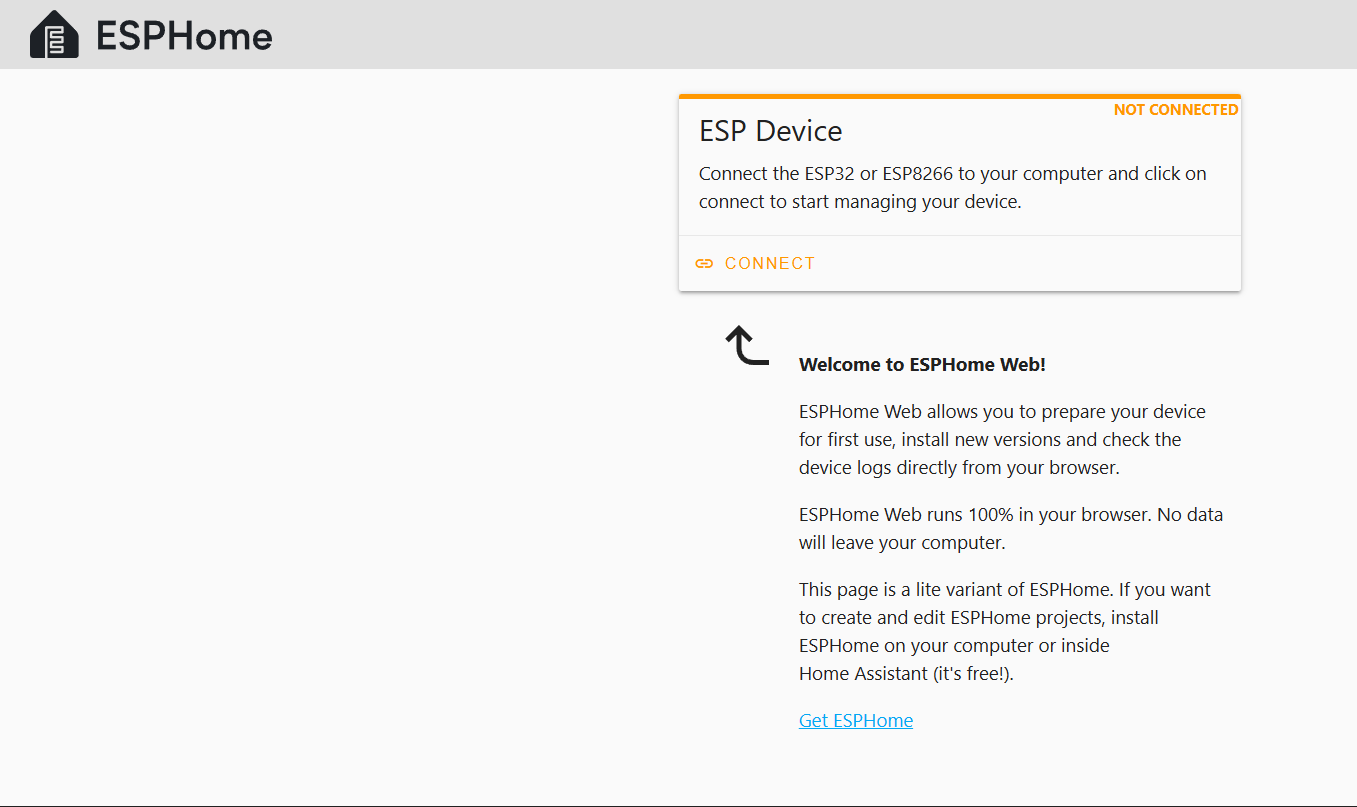
- On the ESPHome Web page, click the Connect button.
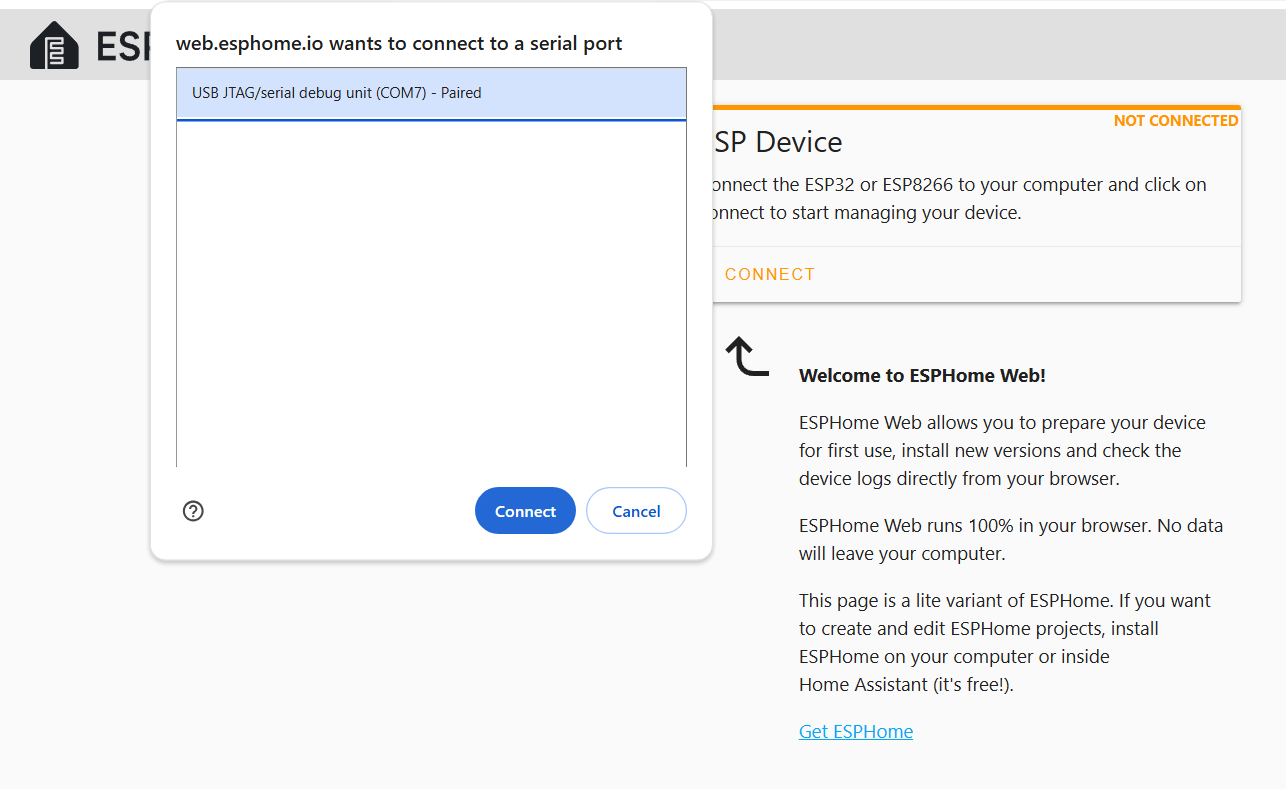
- A pop-up will appear with available devices. Select the port for your ESP32-S3 and click Connect.
4. Install the Binary File
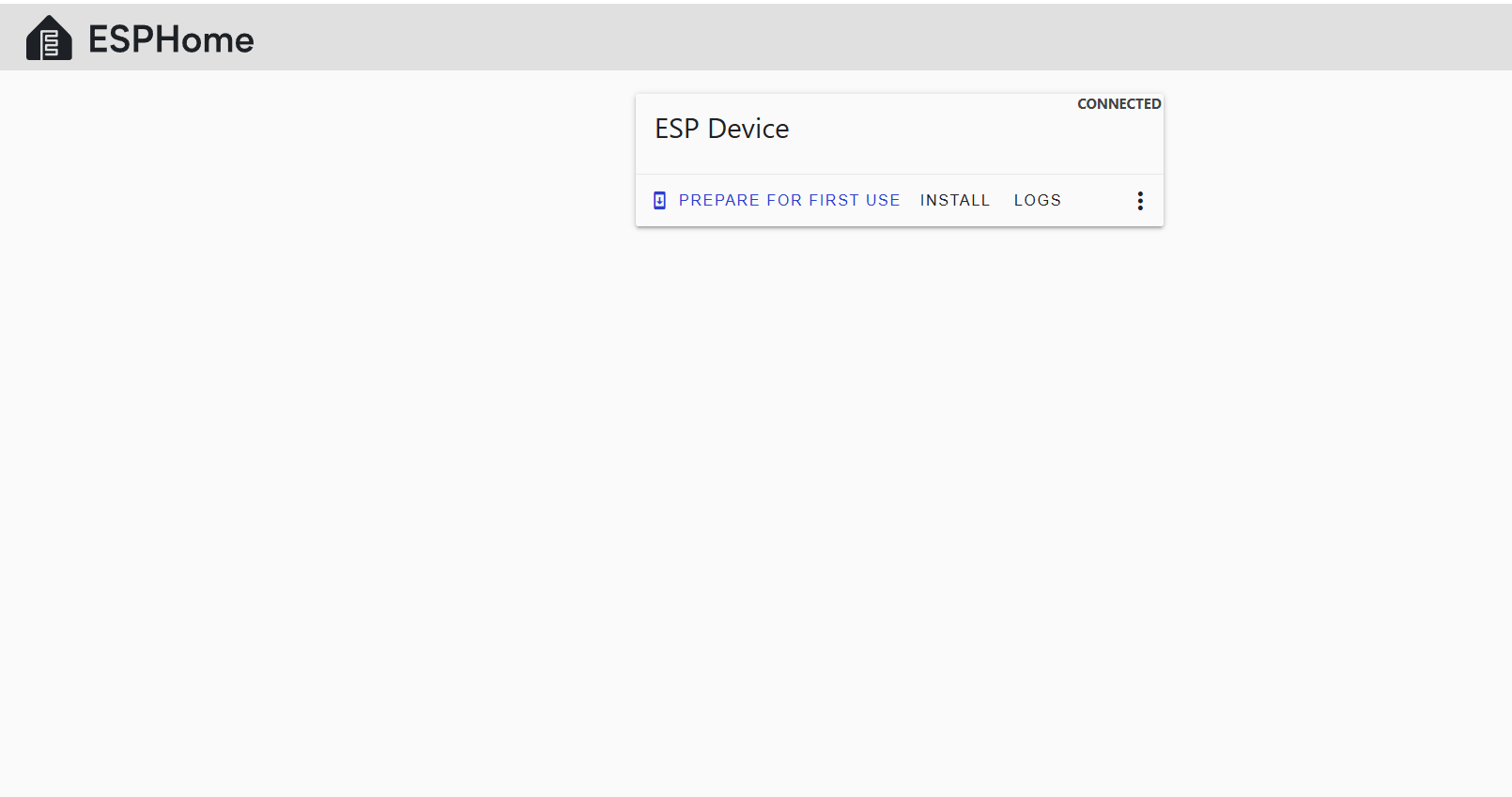
- Once connected, click Install.
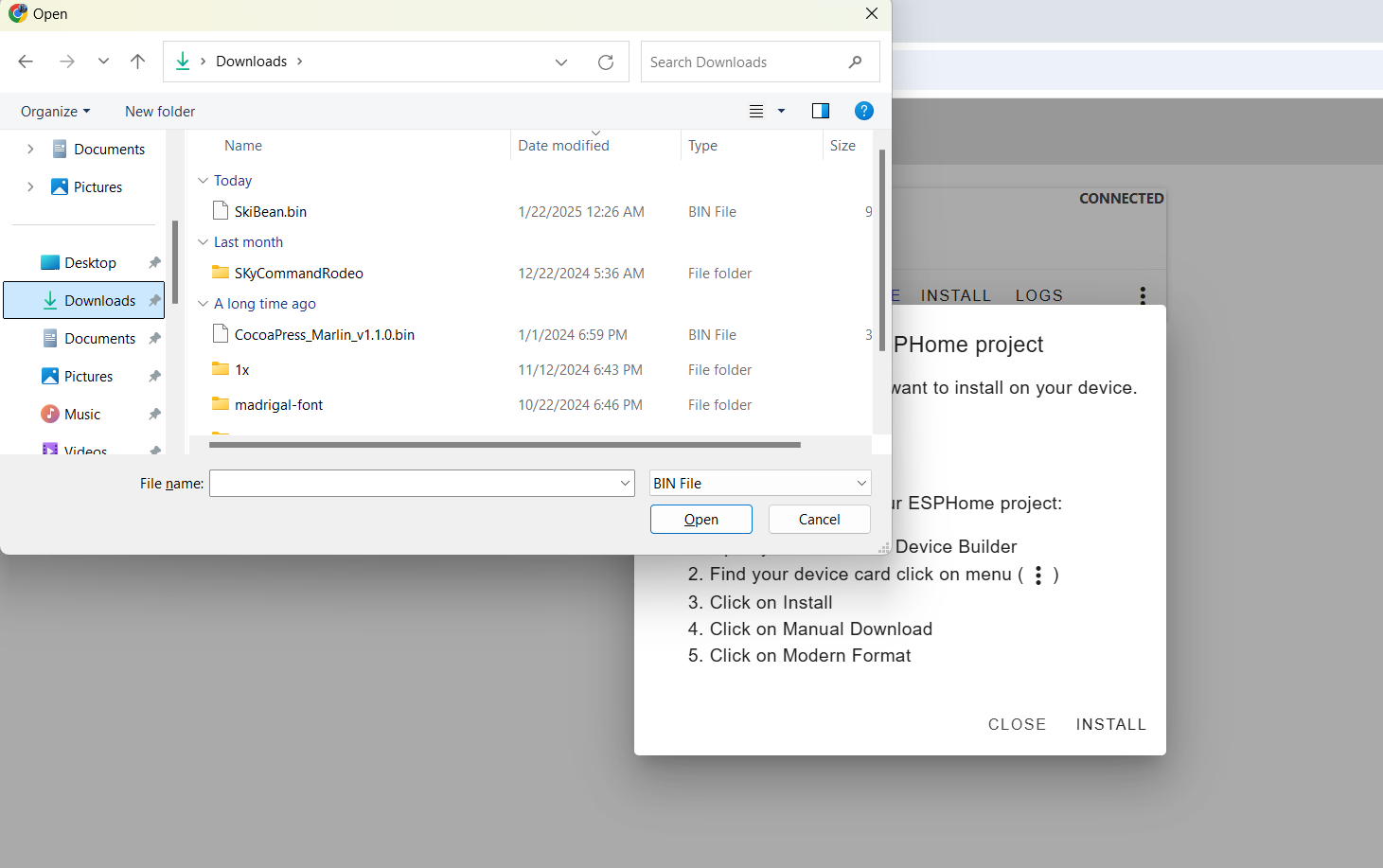
- Choose File when prompted
- In the file selection dialog, locate and select the BLE_host_v1.2z_Kaleido_SnowBear.bin bin file you downloaded earlier.
- Click Install to start the flashing process.
-
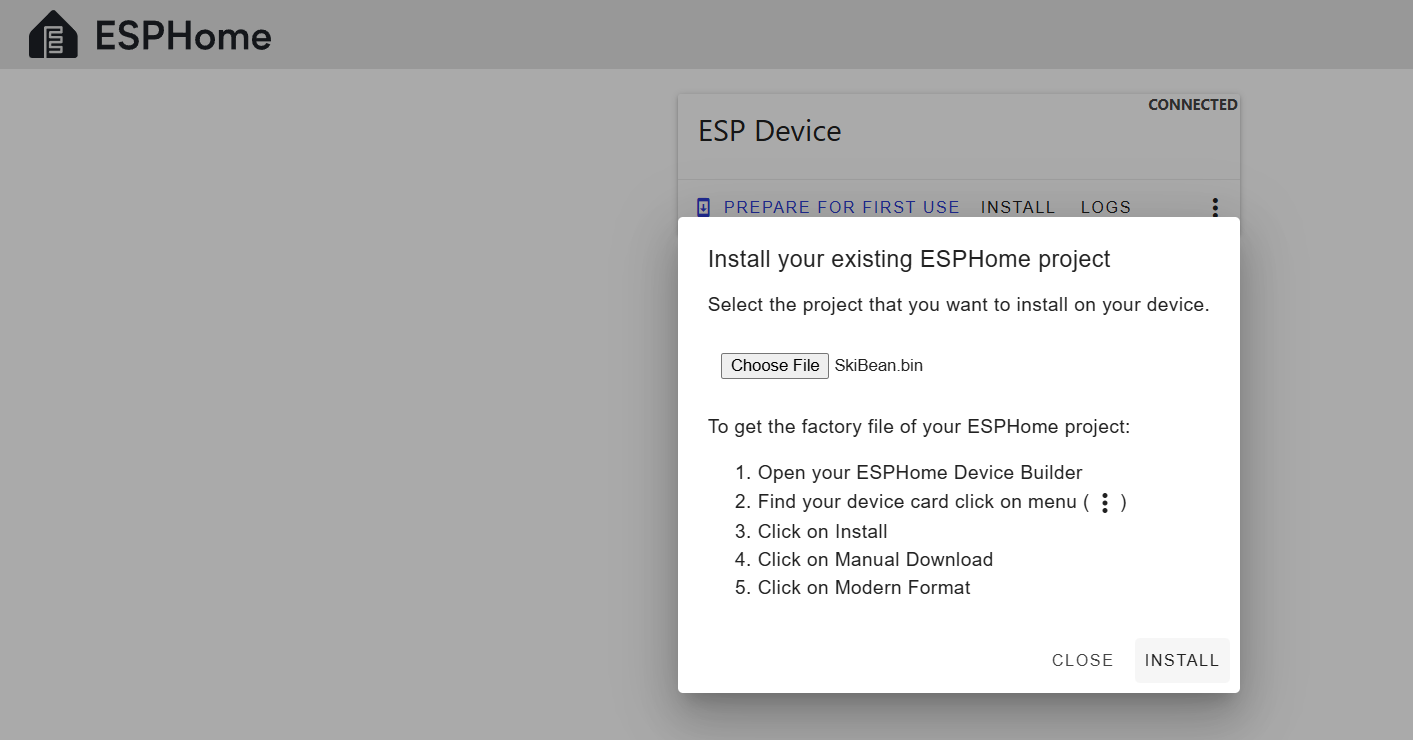
5. Flash the Firmware
- ESPHome Web will erase the existing firmware and flash the BLE_host_v1.2z_Kaleido_SnowBear.bin binary.
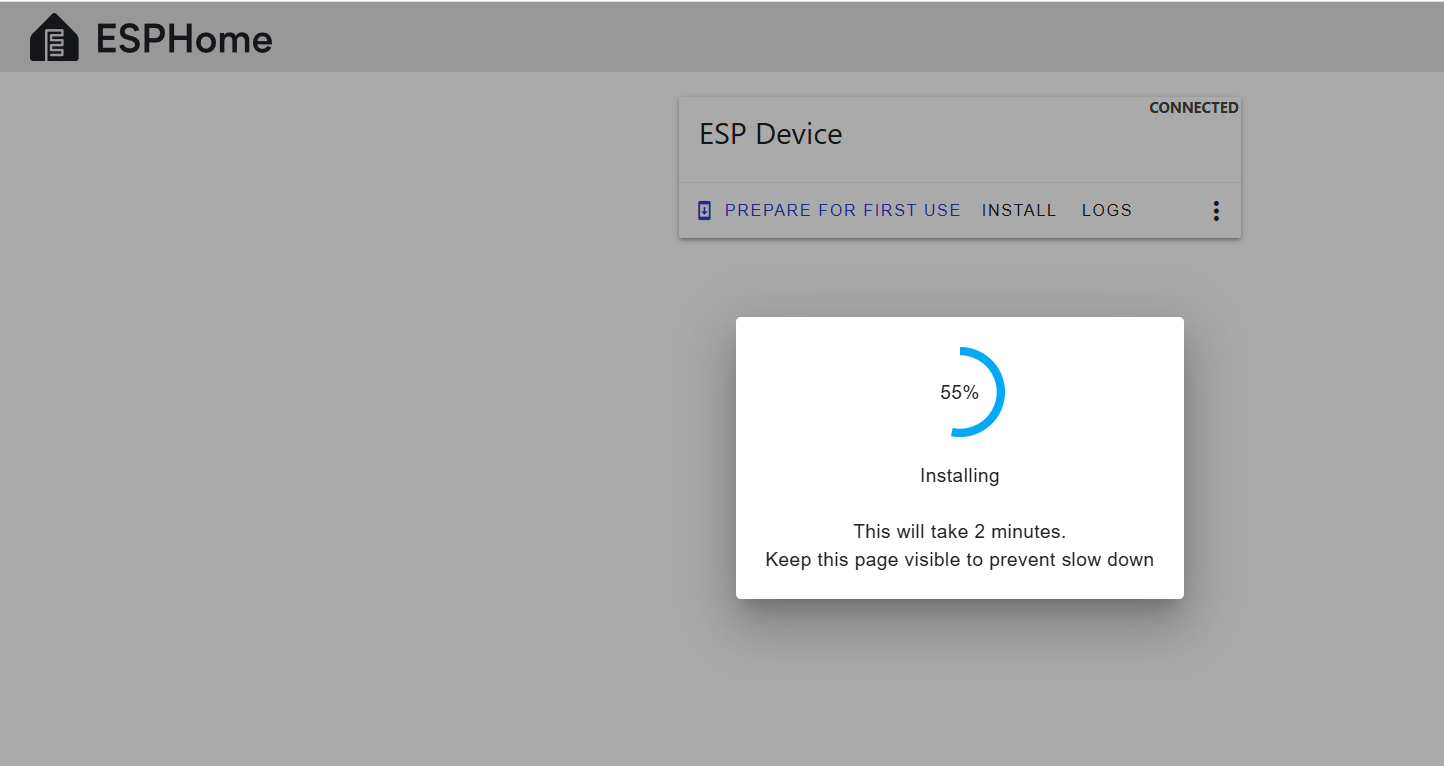
- The flashing process may take a few minutes. Wait for it to complete.
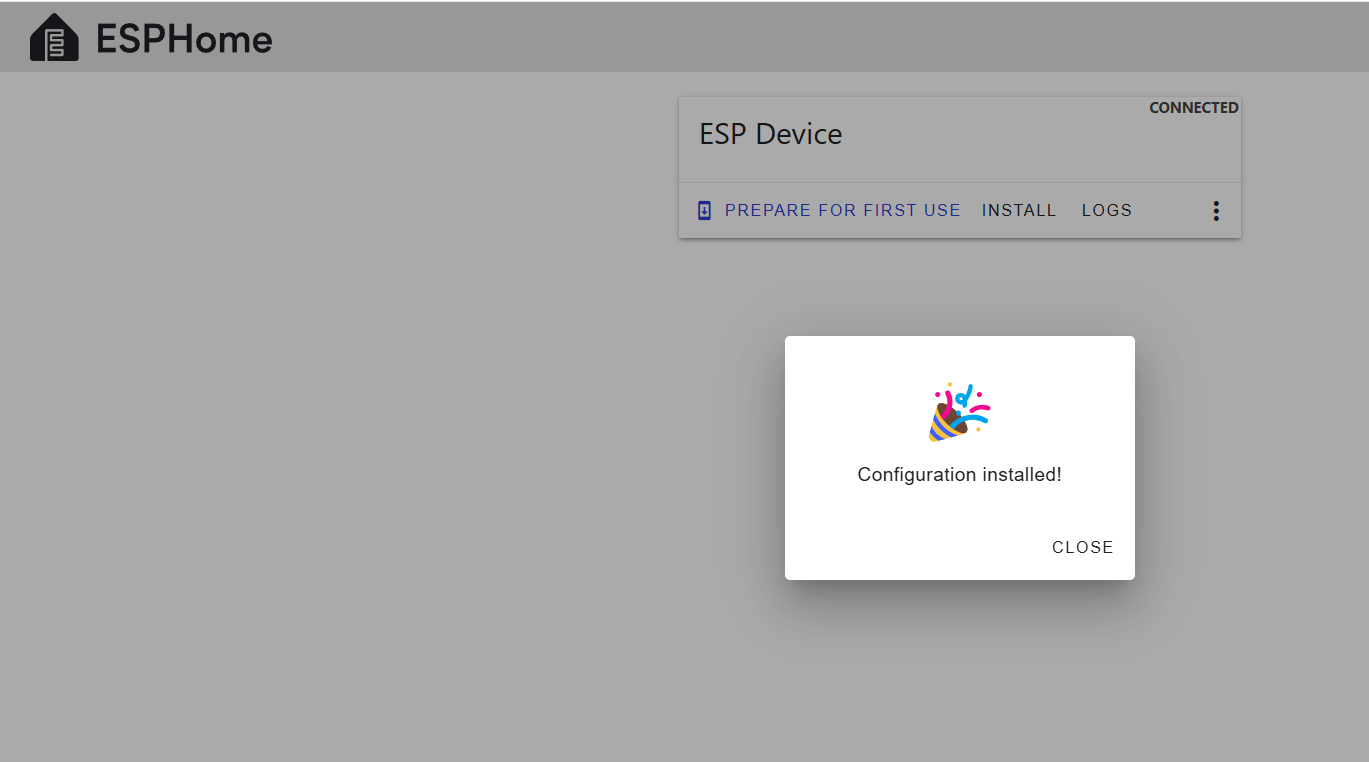
- After successful installation, a success message will appear.
Direct Link to Binary File
Troubleshooting
- Device Not Recognized: Ensure your USB cable supports data transfer.
- Flashing Errors
-
Hold BOOT and press RESET (recommended method):
- Hold down the BOOT button.
- While holding BOOT, press and release the RESET button.
- Continue holding BOOT for a second, then release it.
-
-
-
Unplug and replug while holding the BOOT button:
- Disconnect the ESP32-S3 from power (USB).
- Press and hold the BOOT button.
- While holding BOOT, plug the USB back in.
- Once connected, release the BOOT button.
-
- Let me know if you encounter issues or need further help!
BIG Thank you to Bear of the Skywalker Community Discord and Will_Z for getting this option to work.