
Kaliedo HiBean BLE Firmware
SnowBear Firmware Installation
Kaleido is currently using Classic Bluetooth to connect to HiBean. This is relatively outdated and IOS does not allow use of BLE. So here is a work around to get this working on IOS devices. This can also be used with Bear's bridge to connect devices via BLE Serial that has less issues than SPP Classic Bluetooth on MacOS especially with Apple Silicone. This was brought to you by the Skywalker community developer Bear with support from Will_Z of Hibean.

Requirements
This is still in Beta and code is still being worked on. Please report any issues you have to our Community Discord.
-
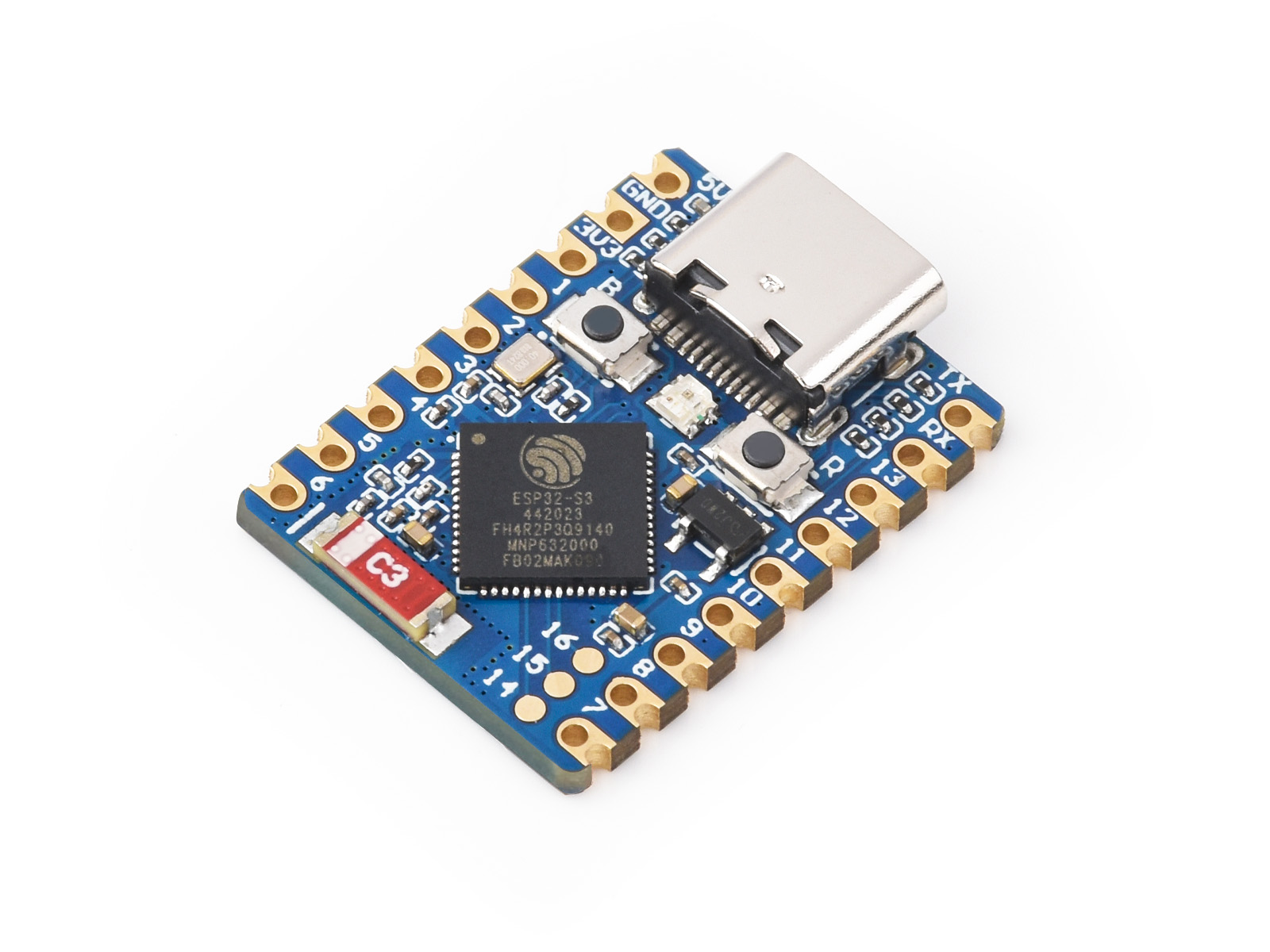
Ensure you have the ESP32-S3 board and a USB cable.
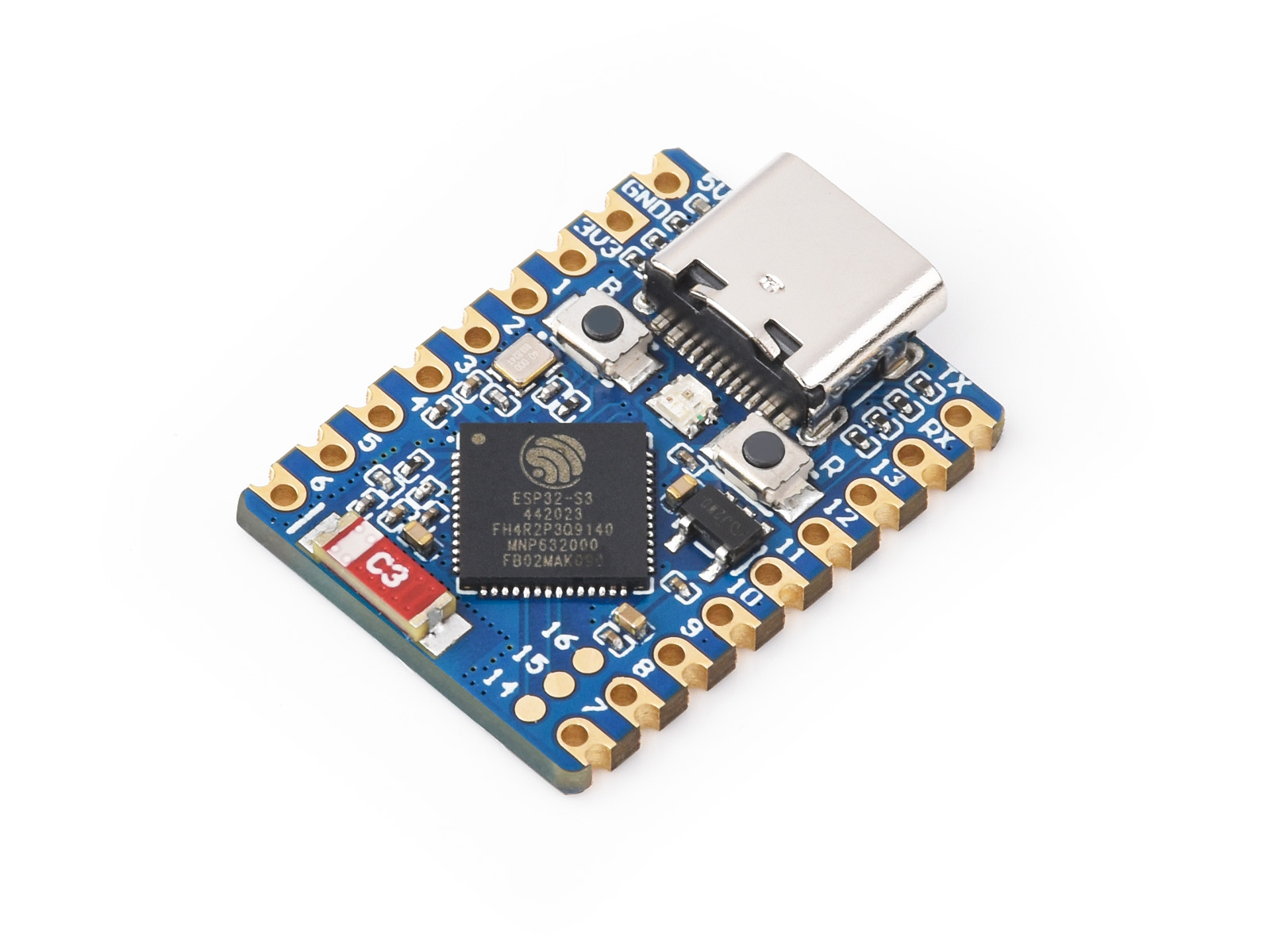
-

- 5v USB Power Source
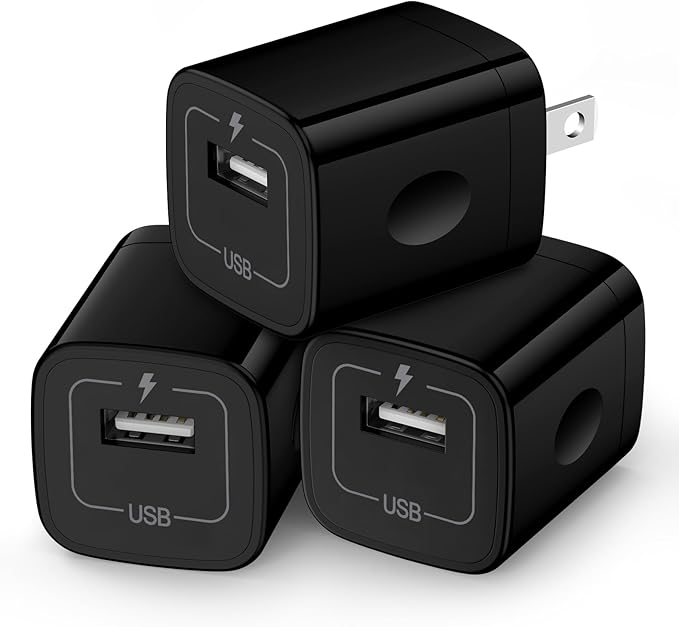
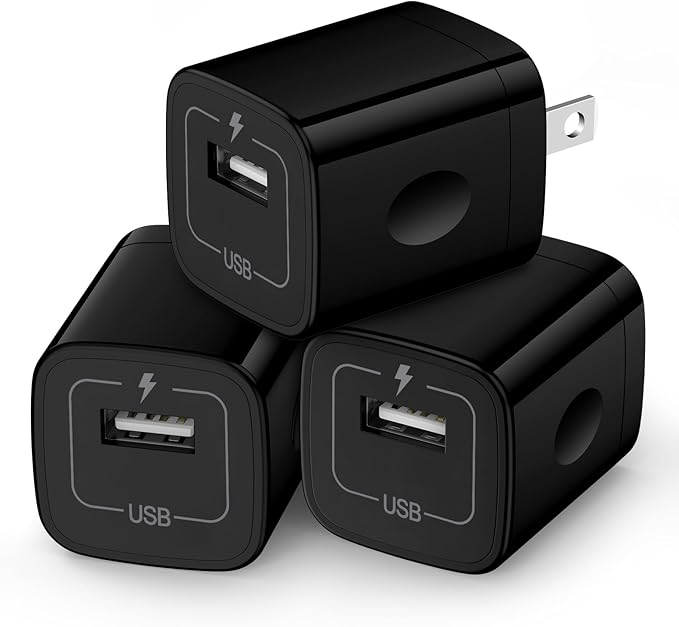
- Binary File Link:
TBA - Browser: Use Google Chrome or Microsoft Edge (supports Web Serial) .
Steps
1. Download the Binary File
- Open the GitHub link: TBA
- Click on the download raw file icon to download

2. Open ESPHome Web
- Go to
in your Chrome or Edge browser.
- Make sure your ESP32-S3 is connected to your computer using a USB cable.
3. Connect the ESP32-S3
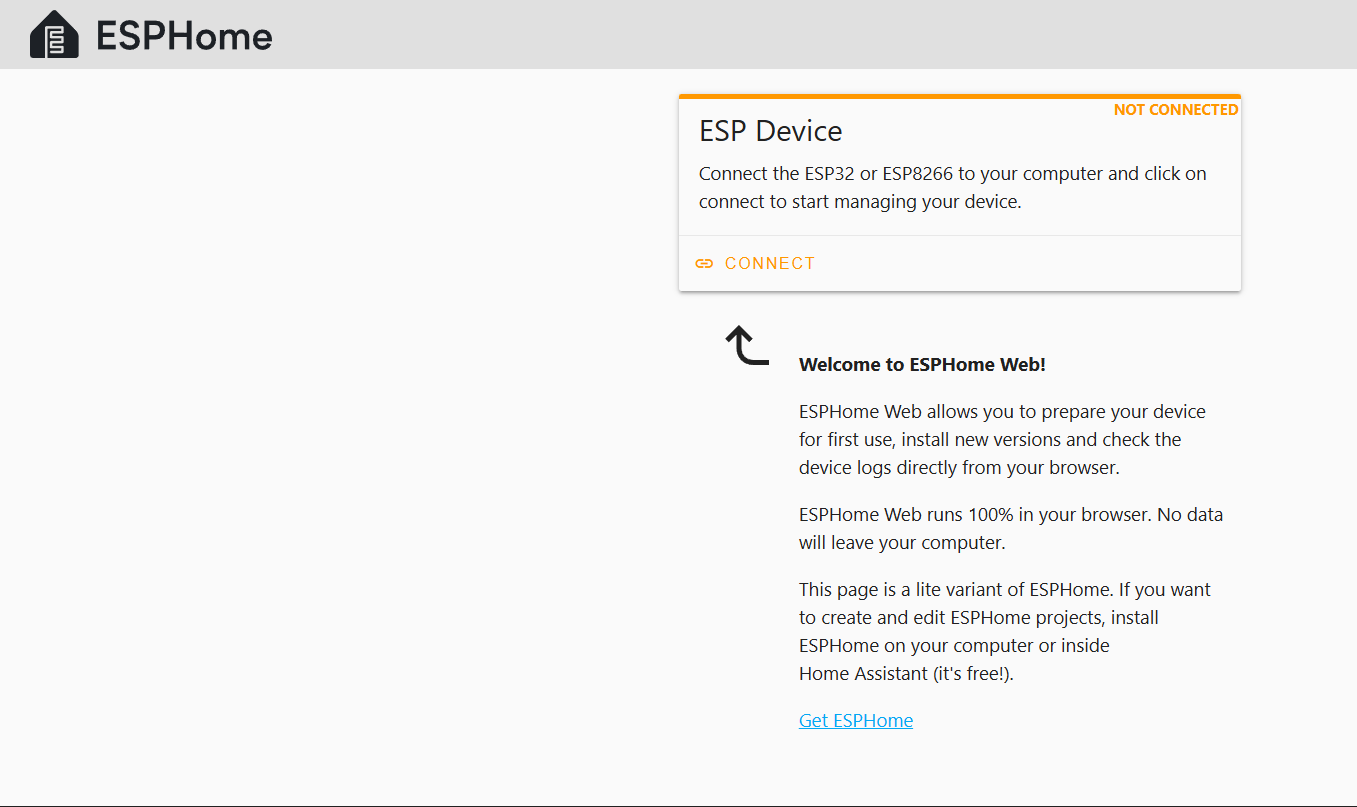
- On the ESPHome Web page, click the Connect button.
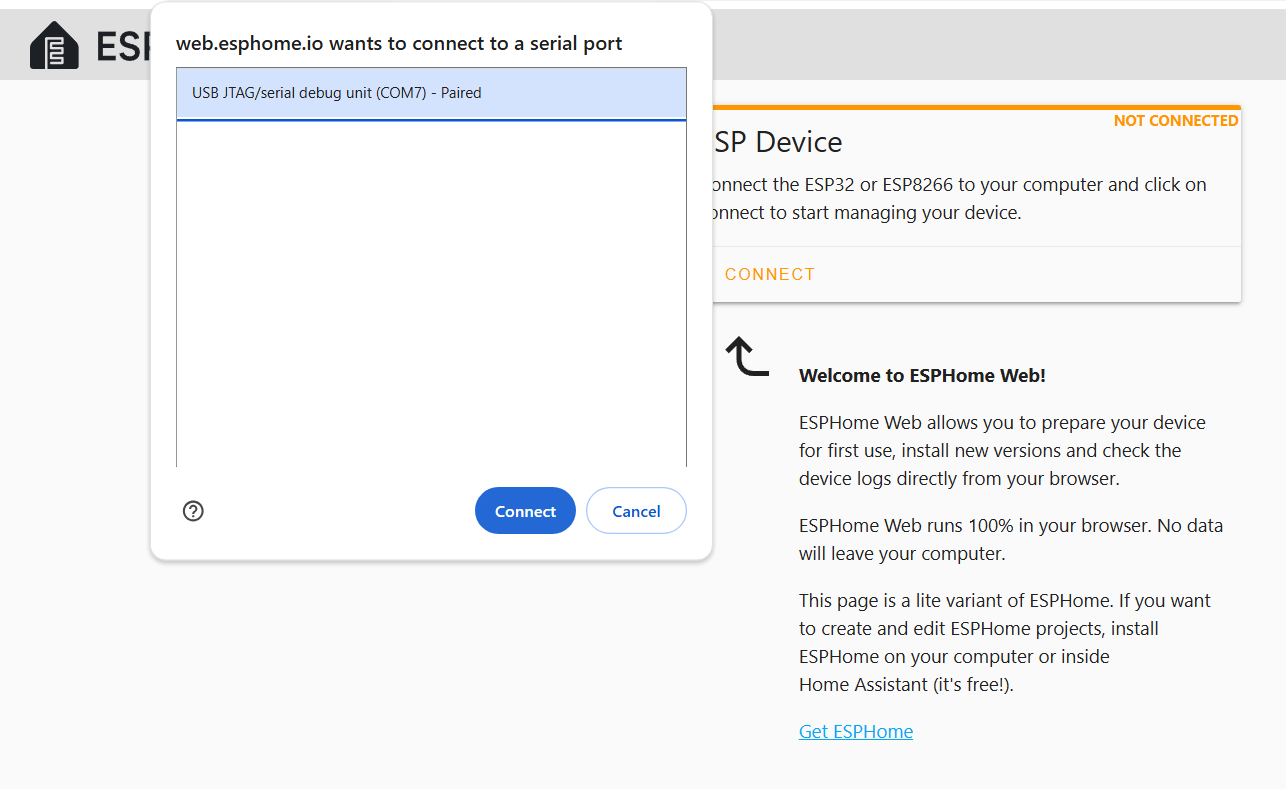
- A pop-up will appear with available devices. Select the port for your ESP32-S3 and click Connect.
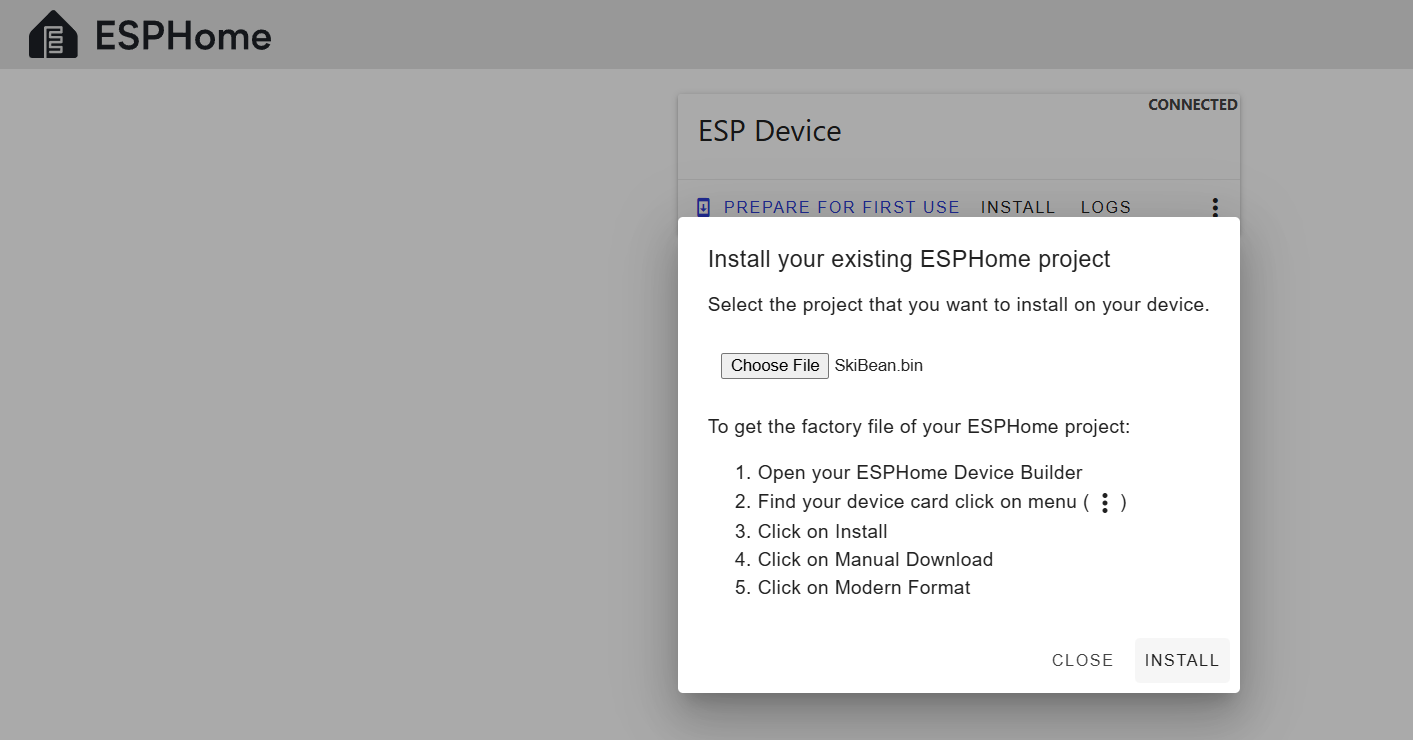
4. Install the Binary File
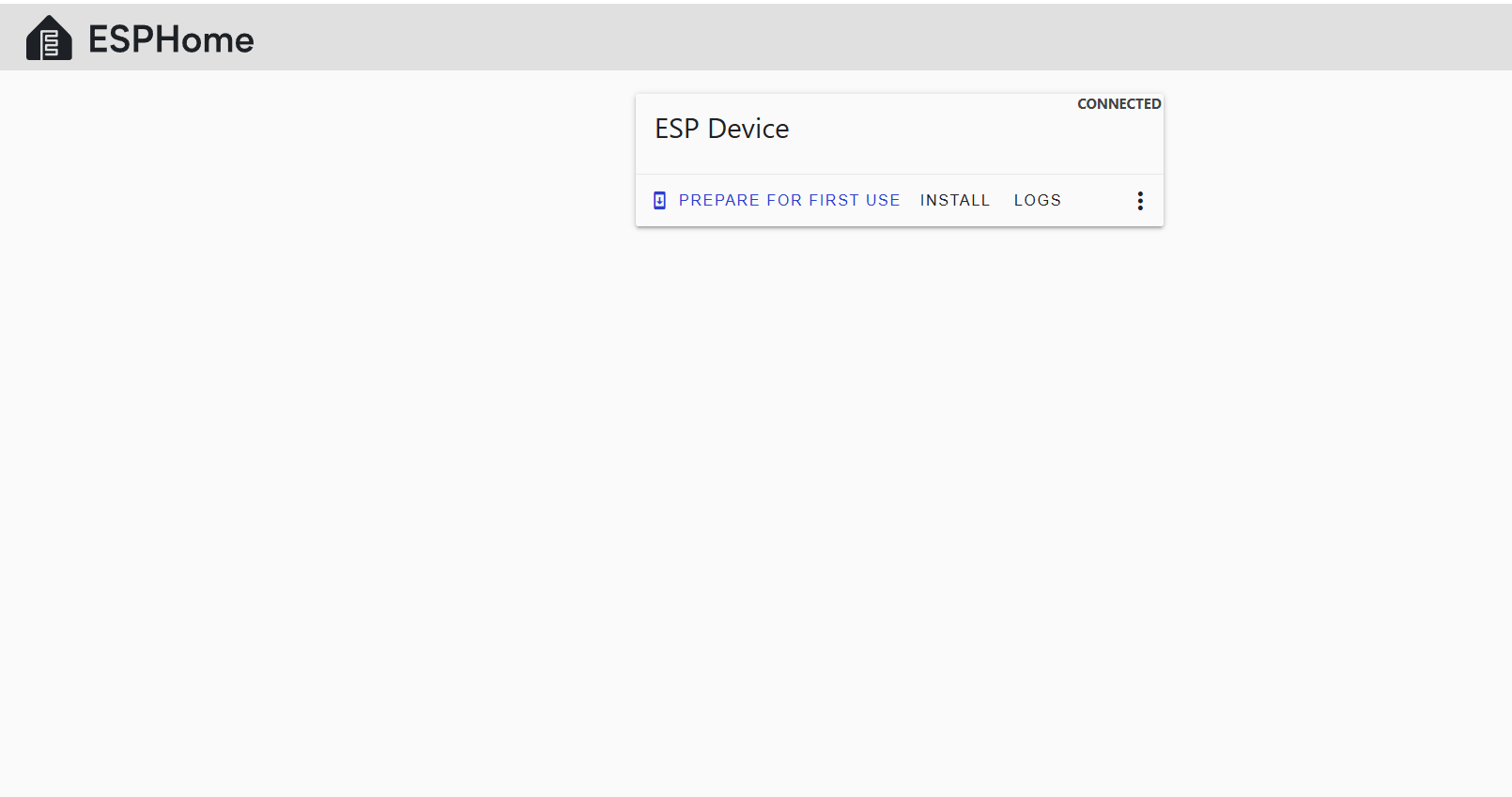
- Once connected, click Install.
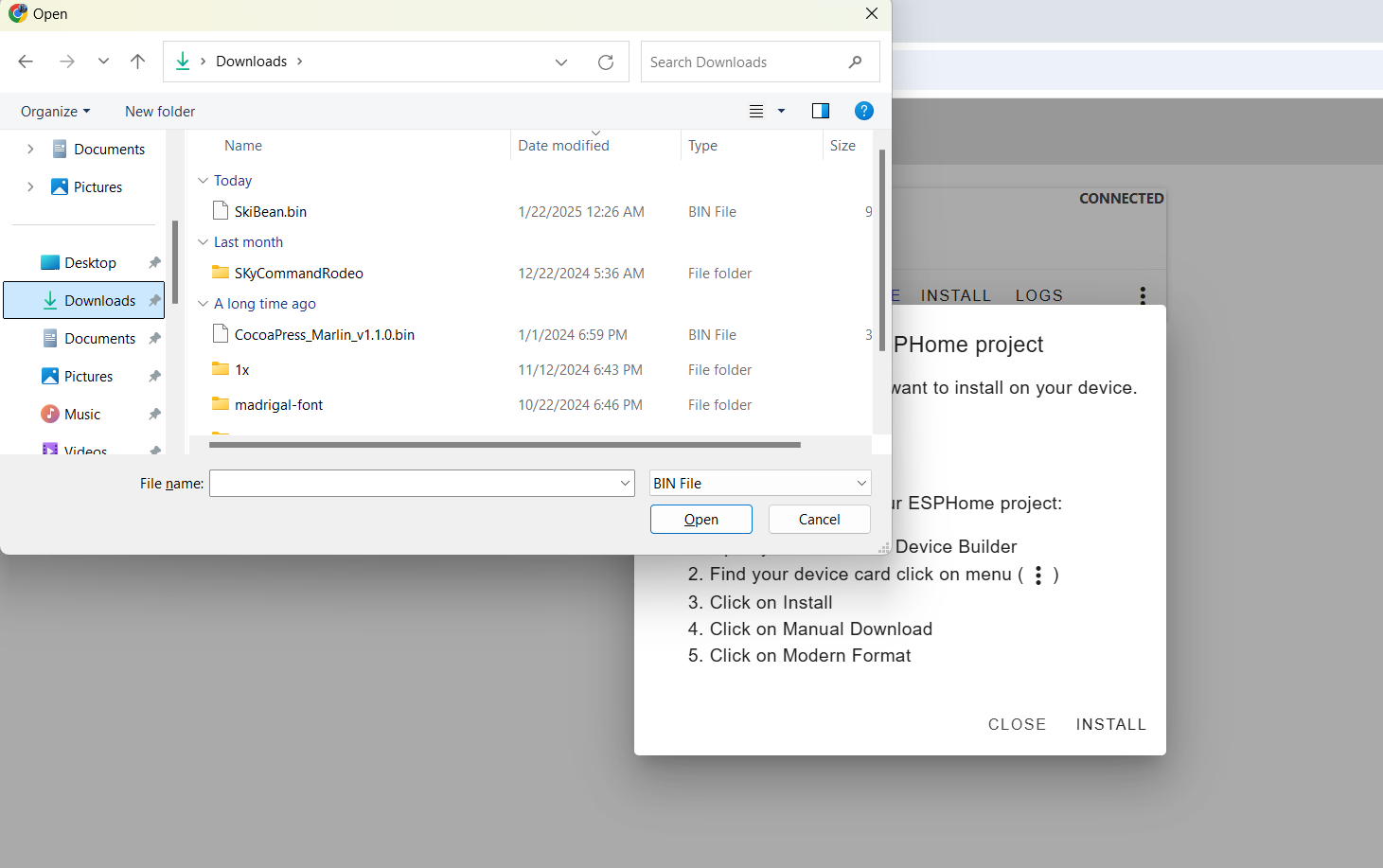
- Choose File when prompted
- In the file selection dialog, locate and select the bin file you downloaded earlier.
- Click Install to start the flashing process.
-
5. Flash the Firmware
- ESPHome Web will erase the existing firmware and flash the
SkiBean.binbinary.
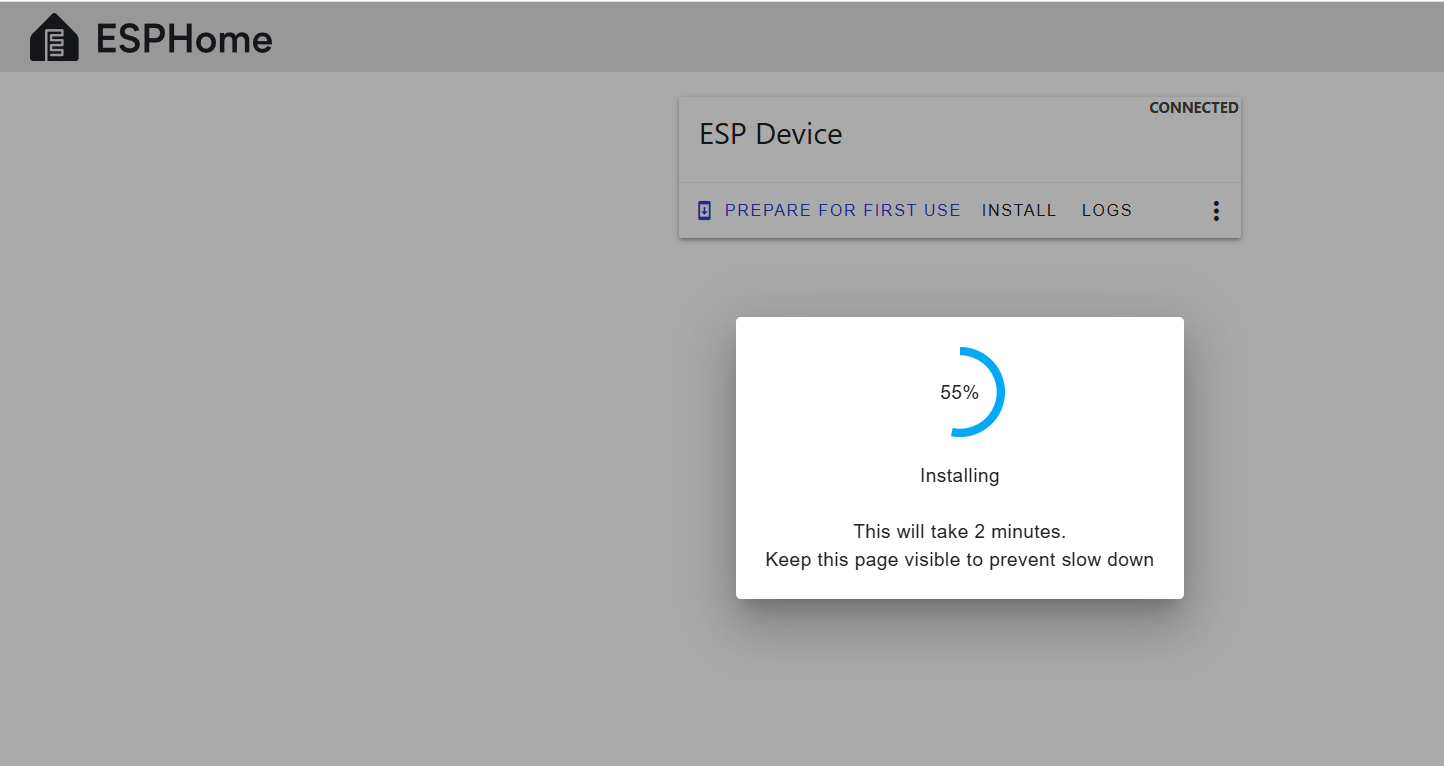
- The flashing process may take a few minutes. Wait for it to complete.
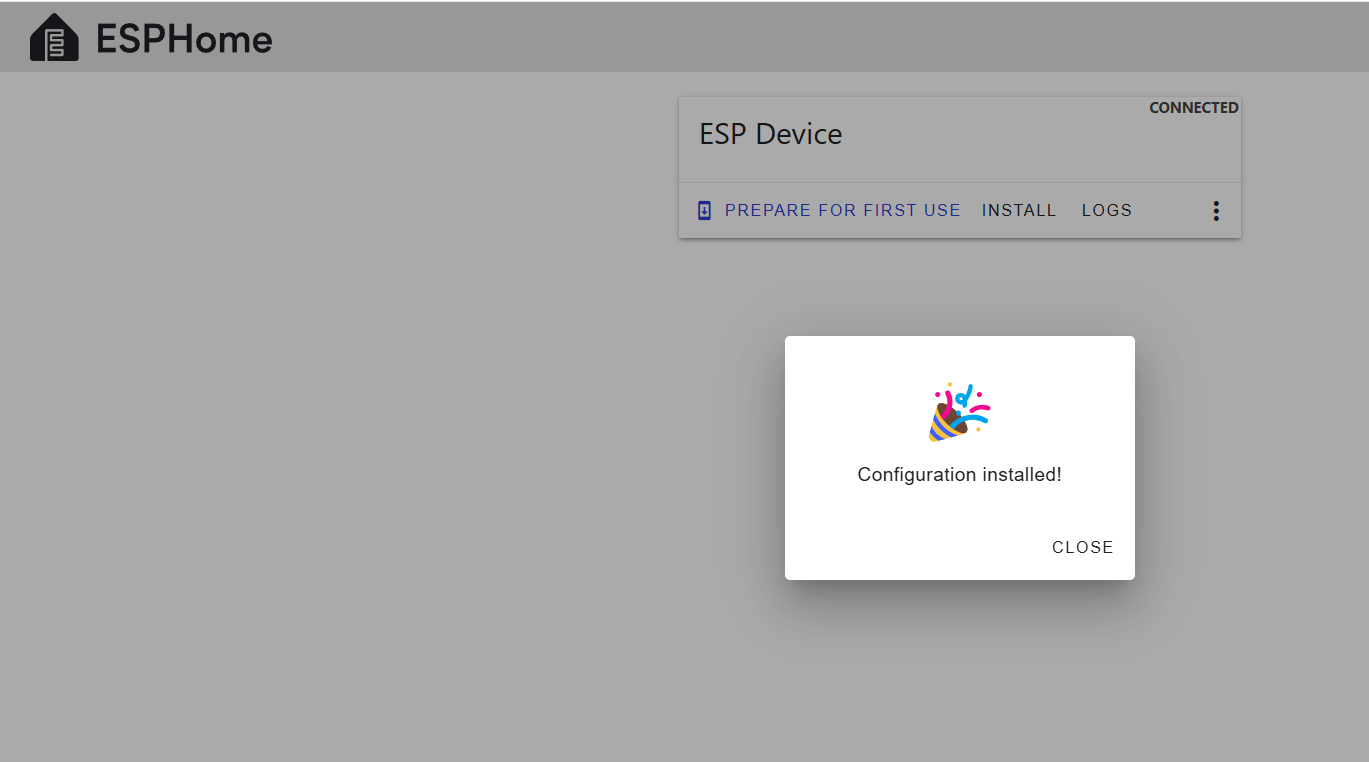
- After successful installation, a success message will appear.
Direct Link to Binary File
Troubleshooting
- Device Not Recognized: Ensure your USB cable supports data transfer.
- Flashing Errors
-
Hold BOOT and press RESET (recommended method):
- Hold down the BOOT button.
- While holding BOOT, press and release the RESET button.
- Continue holding BOOT for a second, then release it.
-
-
-
Unplug and replug while holding the BOOT button:
- Disconnect the ESP32-S3 from power (USB).
- Press and hold the BOOT button.
- While holding BOOT, plug the USB back in.
- Once connected, release the BOOT button.
-
- Let me know if you encounter issues or need further help!
BIG Thank you to Bear of the Skywalker Community Discord and Will_Z for getting this option to work.